Test, save, activate, runs and limits
Test
Test runs the draft right away and shows the path and each block's output. Blocks that write or send are simulated (they don't write or send anything). If there are problems, KoData marks them and asks you to Fix the highlighted problems before testing.
Save
Save (Ctrl+S) creates a new version. If the workflow is active, the saved version becomes the one that runs. If it has problems, you'll see Saved, but not applied: fix the highlighted problems. and the previous version keeps running.
Get notified when a workflow fails
There are two ways, and you can use both:
1. From Notifications (for the whole workspace). Anyone with the workspace.notifications.update permission (workspace.notifications.update) sets it up. KoData notifies on its own when a run fails (test runs never notify):
- Open Settings › Notifications and filter the Workflows Category.
- In Workflow run failed, check that Email and In-app are on (they're on by default).
- Choose the Recipients: All members, By role or By member. Only people with access to the workflow get it; the workflow owner always does.
2. From the workflow's blocks (whoever builds it, to whoever they want).
- In the block that may fail, under If the block fails (Advanced tab), choose Continue with the next blocks. If it fails, the next blocks get
{{input.error}}with the error message. - Connect a Condition:
{{input.error}}is not empty. - On the True path, add the notice: Send email (to any address, up to 20, even without a KoData account), Notify members or Write to connector (Slack or Teams). You can include
{{input.error}}in the message. - On the False path the normal flow continues (the Condition passes the block's data through unchanged).
With Stop the workflow (the default), the run stops at that block: the next blocks don't run and only way 1 applies.
Note: To be told about skipped rows when writing to a table, use a Condition with
{{steps.table_write_1.skipped}}is greater than0. See Guide: scheduled workflow.
Activate, pause and run
- The workflow's ⋯ menu (left bar) › Activate turns its triggers on; Pause turns them off.
- Run / Run now runs the last saved version (with the workflow active).
Runs
Open Runs: each run with its status, source and duration. Click it to see the Steps with their input, output and logs, Run again or Copy to editor the configuration it used.
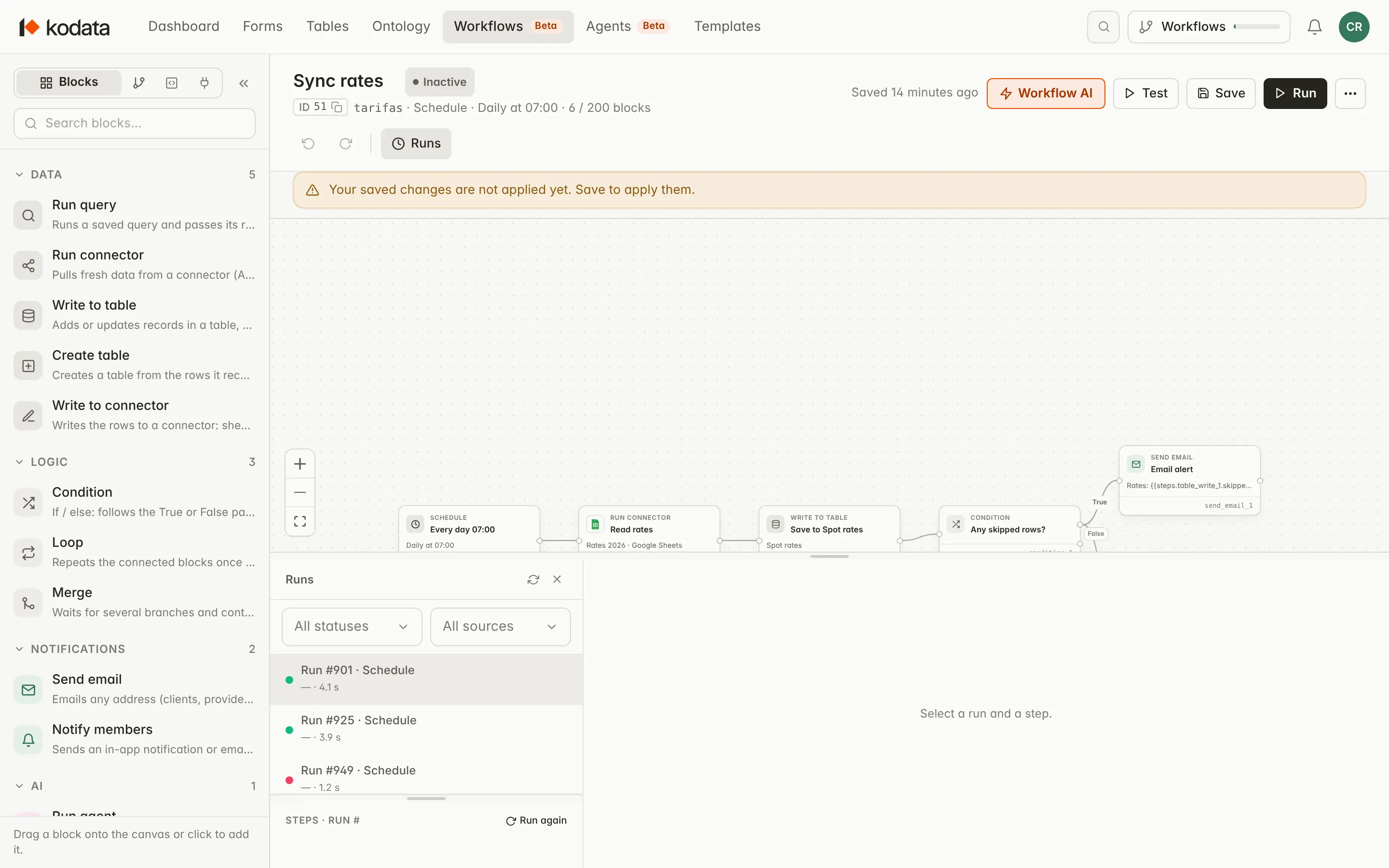
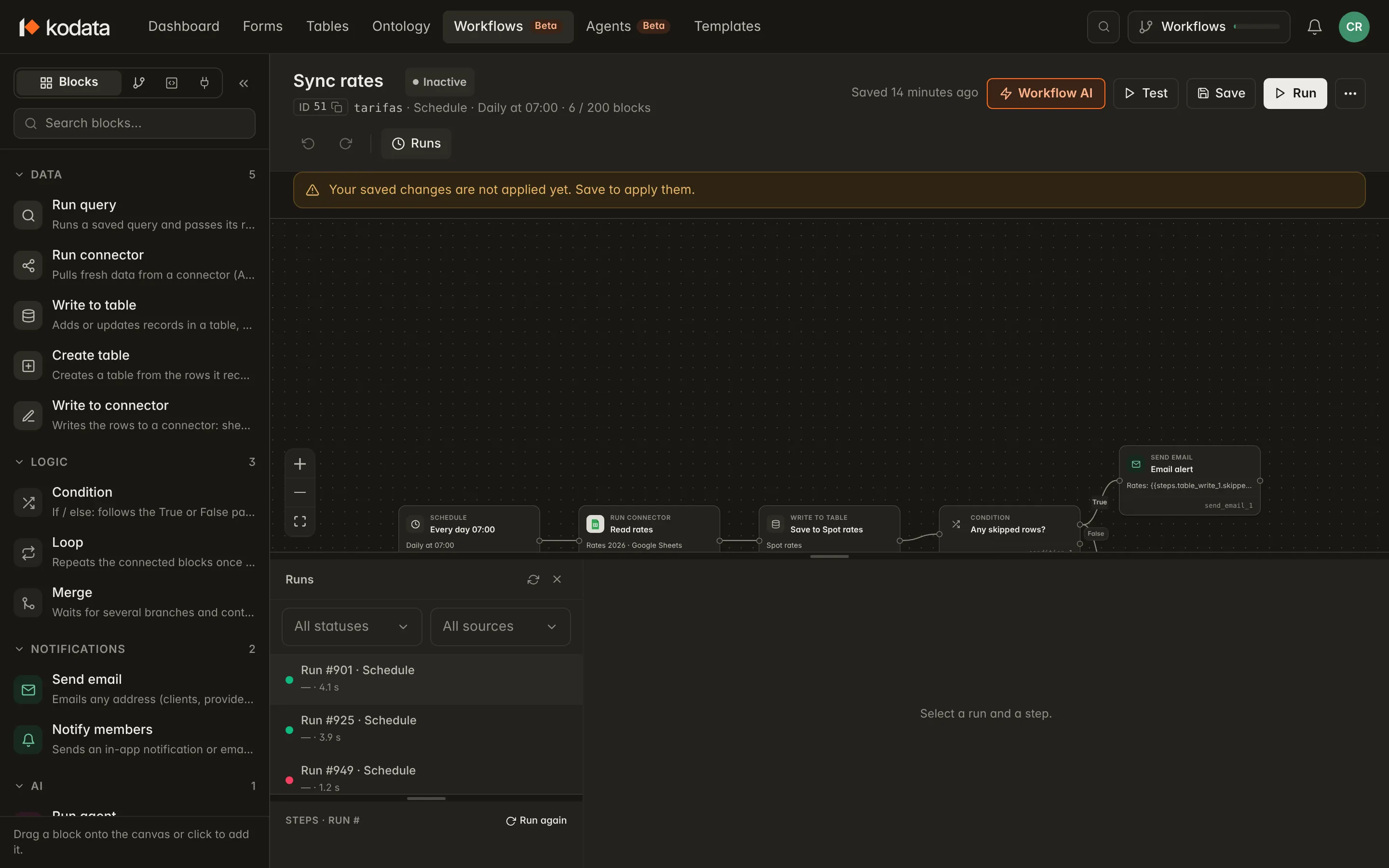
Failed runs show up in Dashboard › Needs your attention and in your notifications.
Limits
| Free | Team | Business | |
|---|---|---|---|
| Workflows | 2 | 20 | 100 |
| Runs per month | 100 | 10,000 | 100,000 |
| Blocks per workflow | 25 | 100 | 200 |
| Maximum duration | 5 min | 15 min | 60 min |
| Schedule, webhook and event | — | ✓ | ✓ |
| Active thresholds | 1 | 10 | 50 |