Scheduled workflow: from Google Sheets to a table, with alerts
Every day at 07:00, read a Google Sheets sheet, save its rows to a table and alert by email and Slack if something fails. Workflows is in Beta.
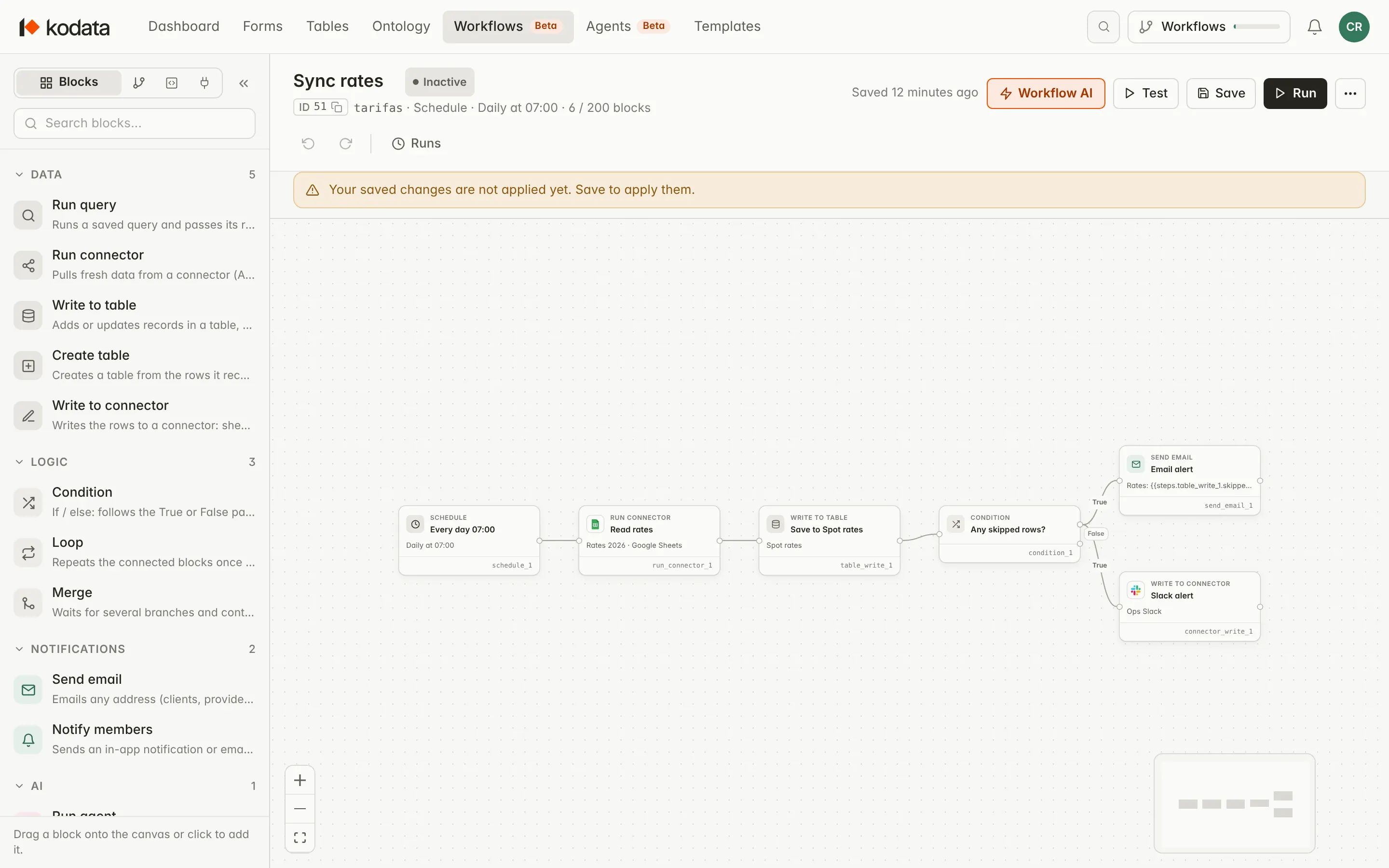
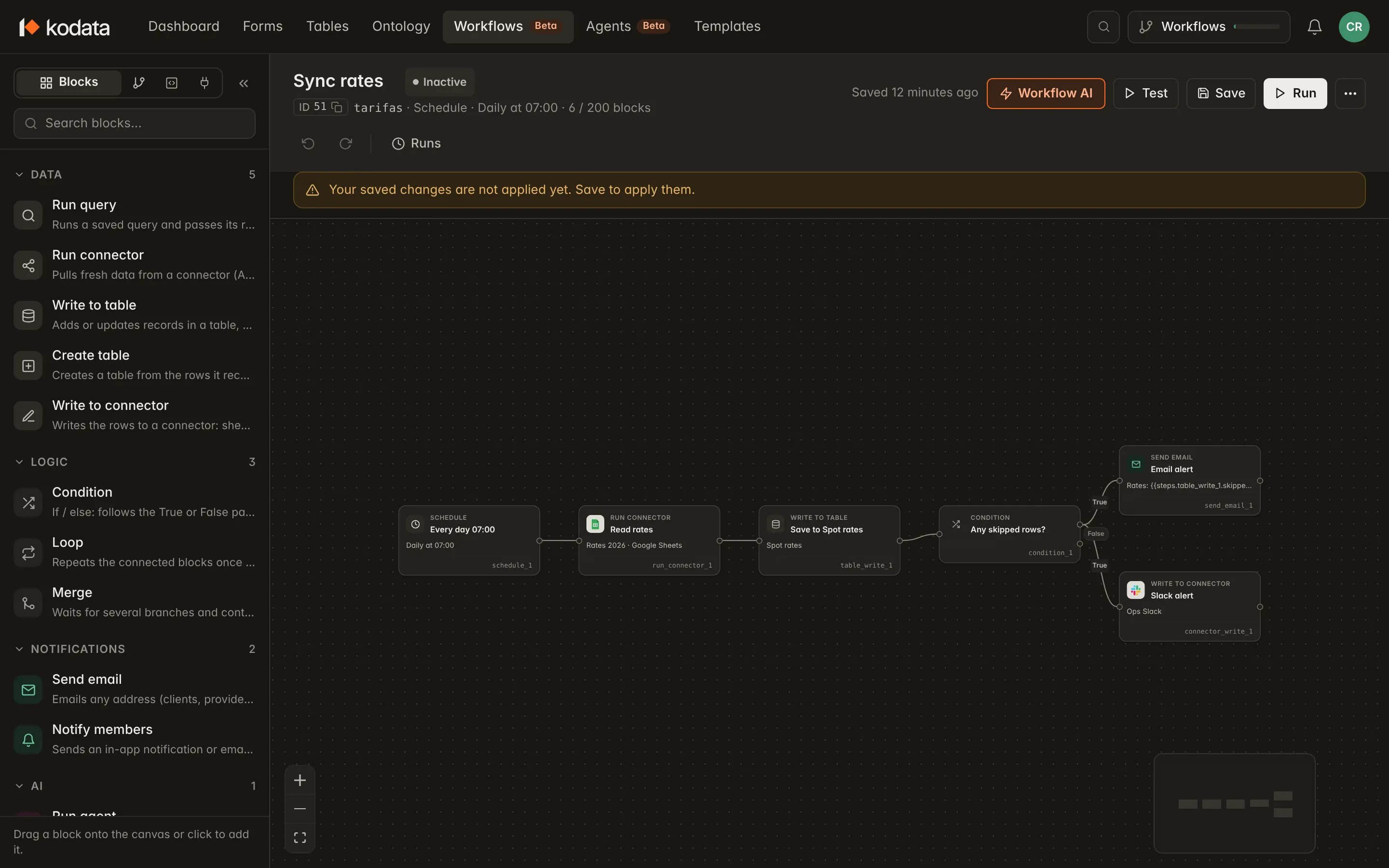
Goal: the Sync rates workflow: Schedule → Run connector (Google Sheets) → Write to table (Spot rates) → Condition → Send email and Write to connector (Slack).
Requirements: a role that can create workflows (Owner, Admin or Editor). Scheduled, webhook and event triggers need the Team plan or higher. A Google account with access to the sheet and, for Slack, a bot token.
Time: 20 minutes.
1. Create the workflow
- In the main menu, click Workflows.
- Click Create and choose New Workflow. (Receive data by webhook creates one that starts from a URL; Build with AI builds it from a description.)
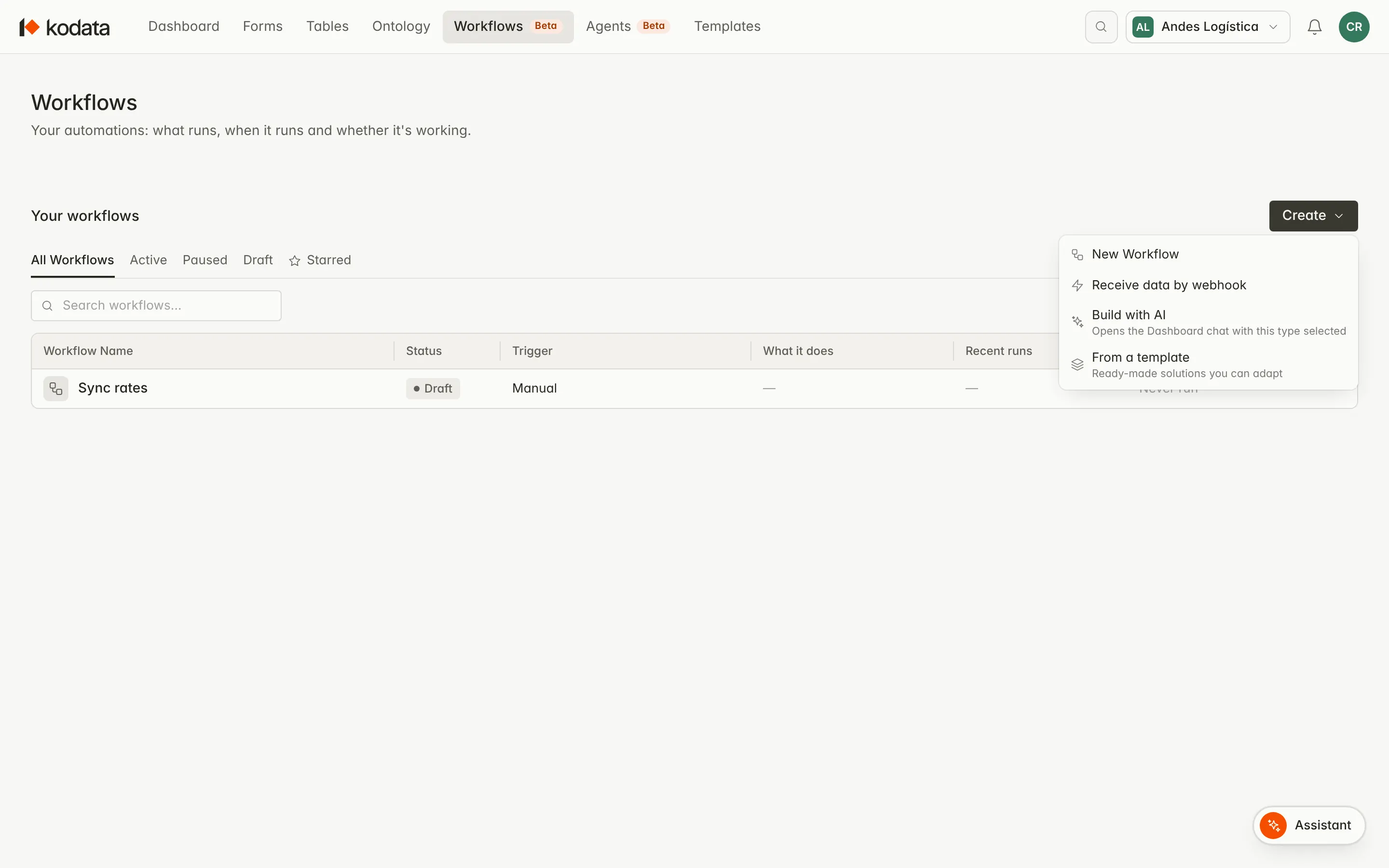
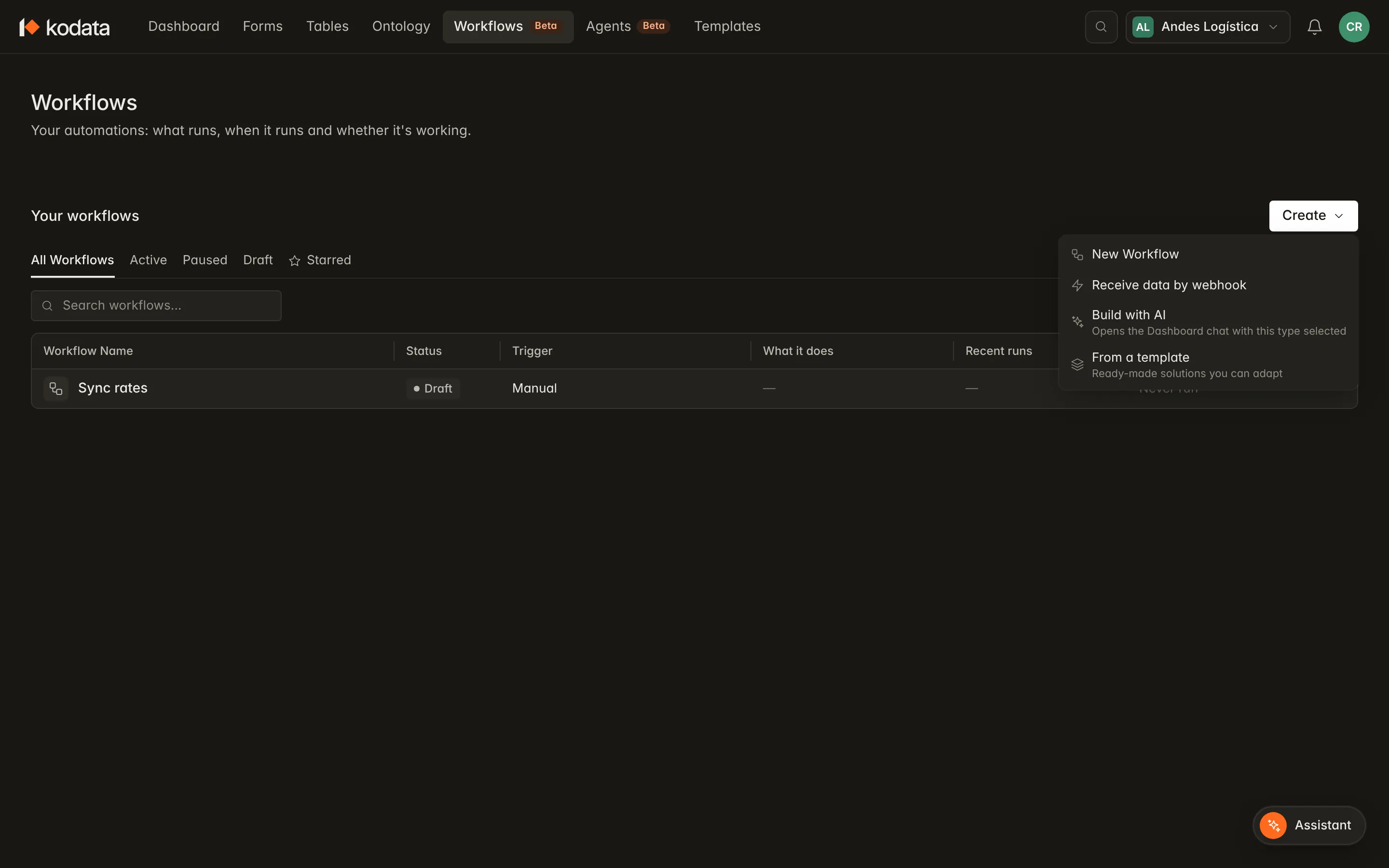
- Type the name and confirm. The editor opens.
2. Get to know the editor
- Left: Blocks, by group: Data (Run query, Run connector, Write to table, Create table, Write to connector), Logic (Condition, Loop, Merge), Notifications (Send email, Notify members) and AI (Run agent).
- Center: the canvas. Drag blocks and connect them output to input.
- Right: the settings of the selected block (Settings, Input, Output, Advanced).
- Top: Workflow AI, Test, Save, Run, the ⋯ menu and Runs.
3. Schedule the trigger
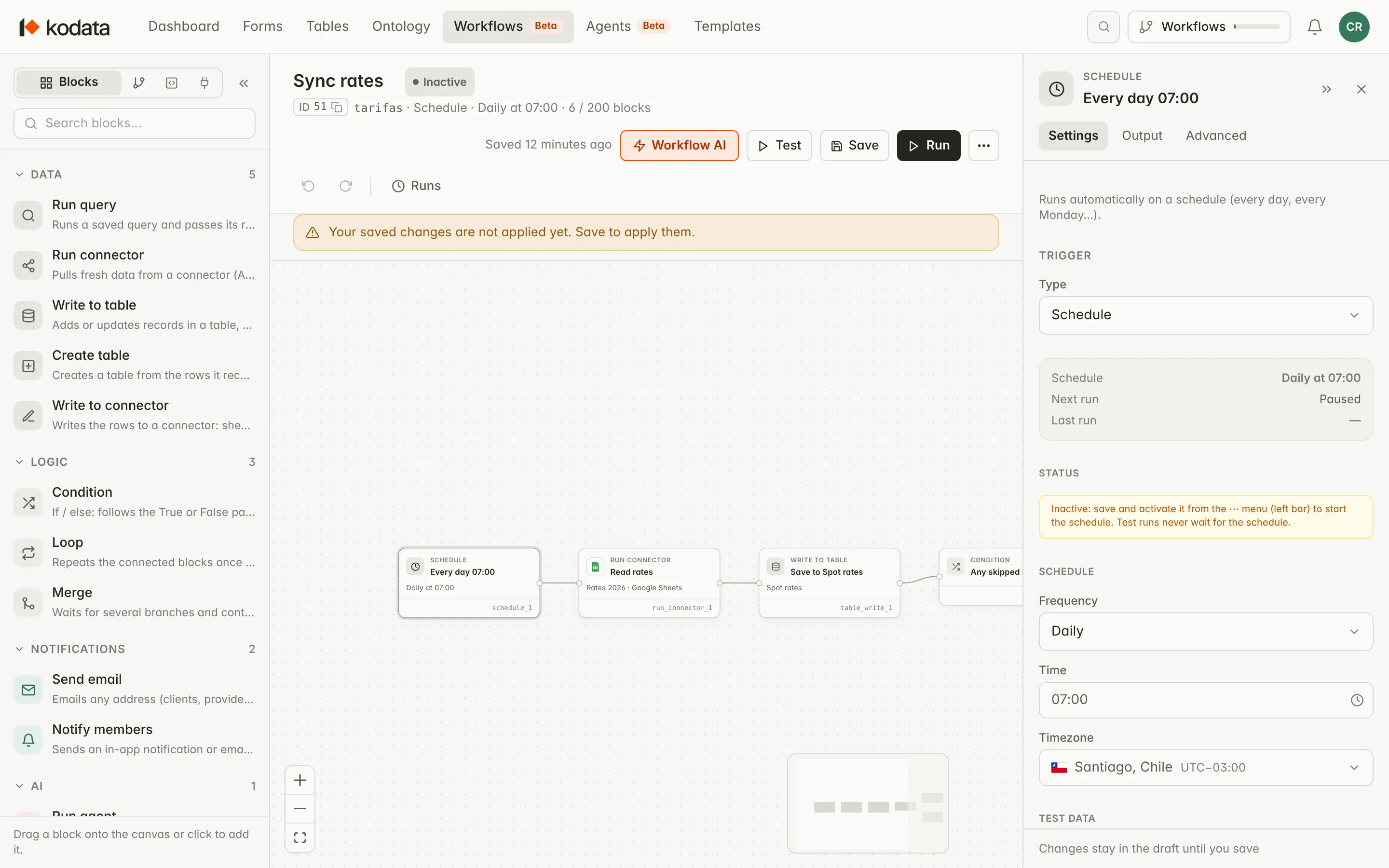
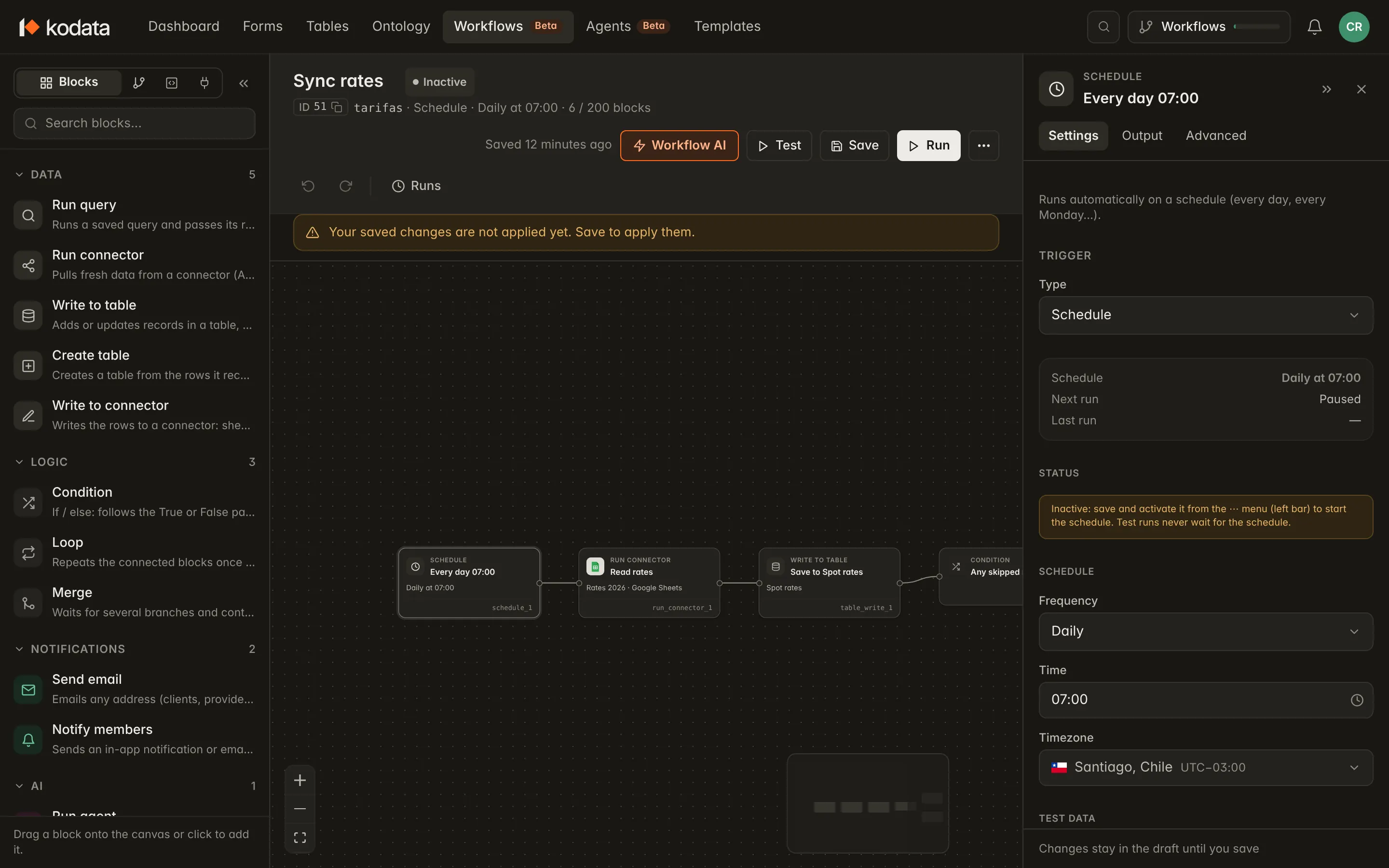
- Click the first block (the trigger). Under Type, choose Schedule.
- Pick the Frequency (hourly, daily, weekdays, weekly, monthly), the Time and the Timezone (the workspace's by default).
4. Read the Google Sheets sheet
- Drag Run connector onto the canvas and connect it to the trigger.
- Its settings show the workspace connectors, with search. Pick one or click New connector to create it:
- Step 1 · Type: choose Google Sheets.
- Step 2 · Name and access: type the name, check the slug and choose who can use it.
- Click Create connector. The connector panel opens.
- Click Sign in with Google and authorize in Google's window.
- Pick the spreadsheet and the sheet. KoData reads the whole sheet (you don't set a cell range); if the column names aren't in row 1, set it in Header Row Number.
- Click Test to see the rows, then Save.
- The block shows the chosen connector, with Edit connector and Change.
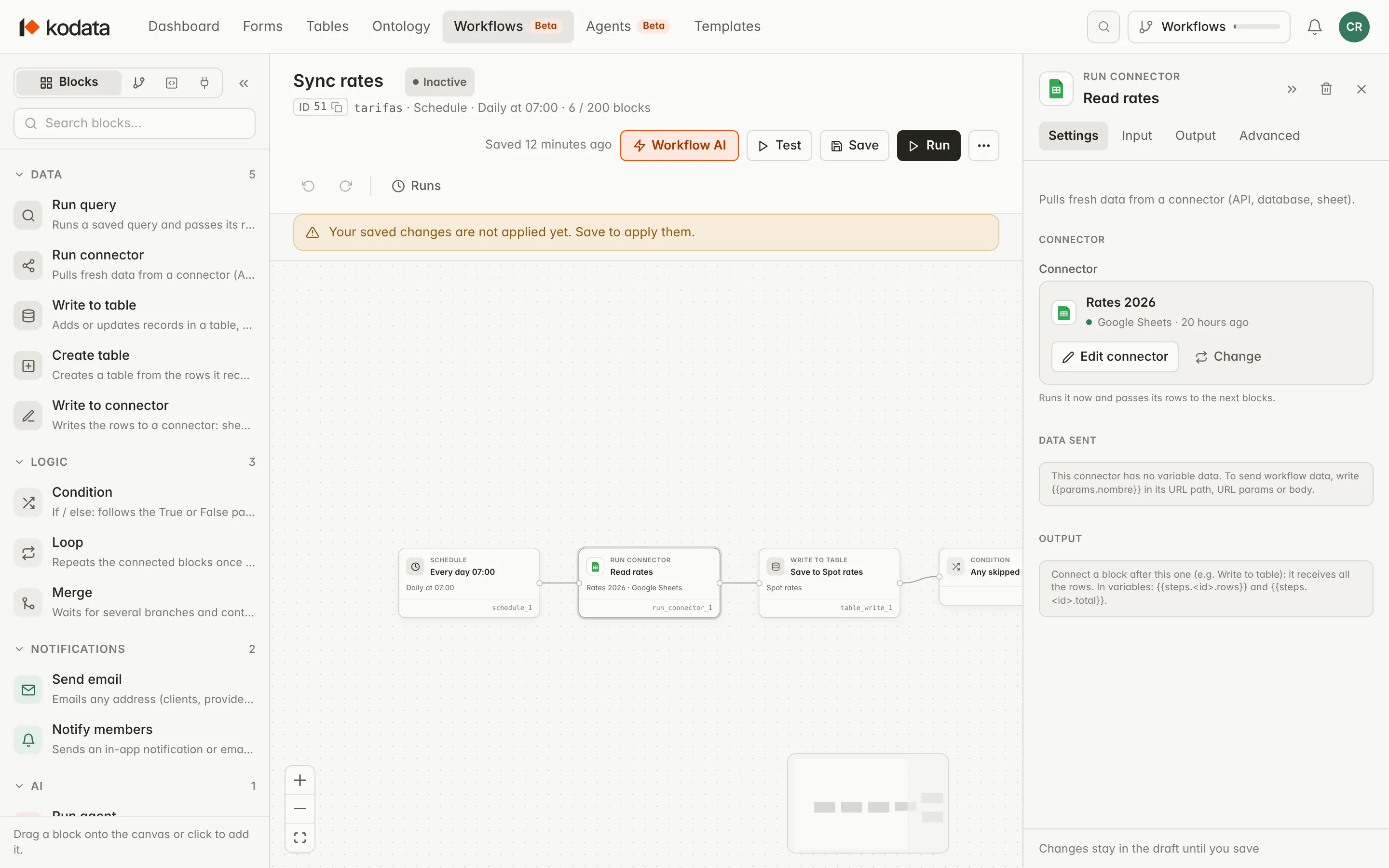
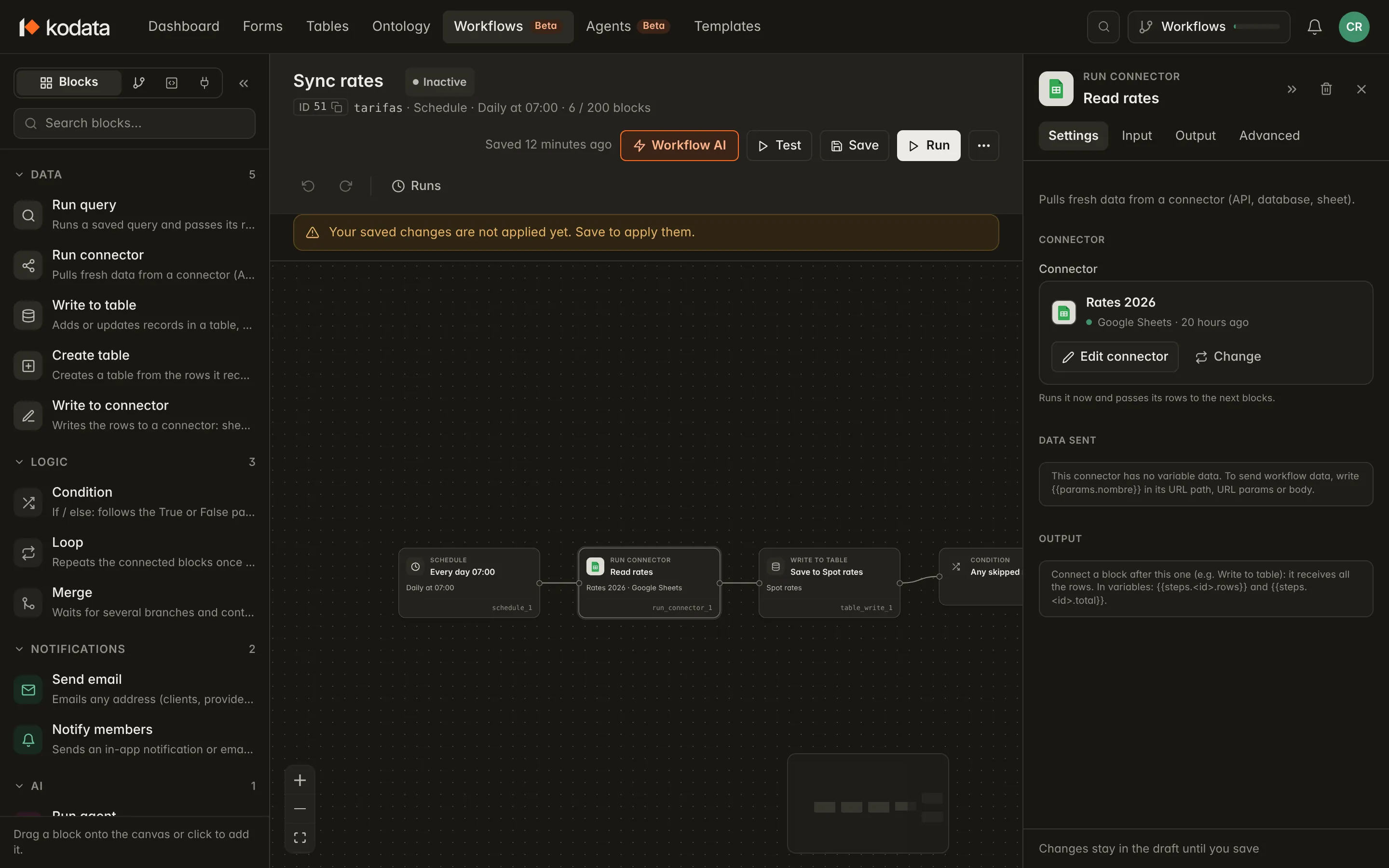
The block's output is every row it read: the next blocks receive them.
5. Write to the table
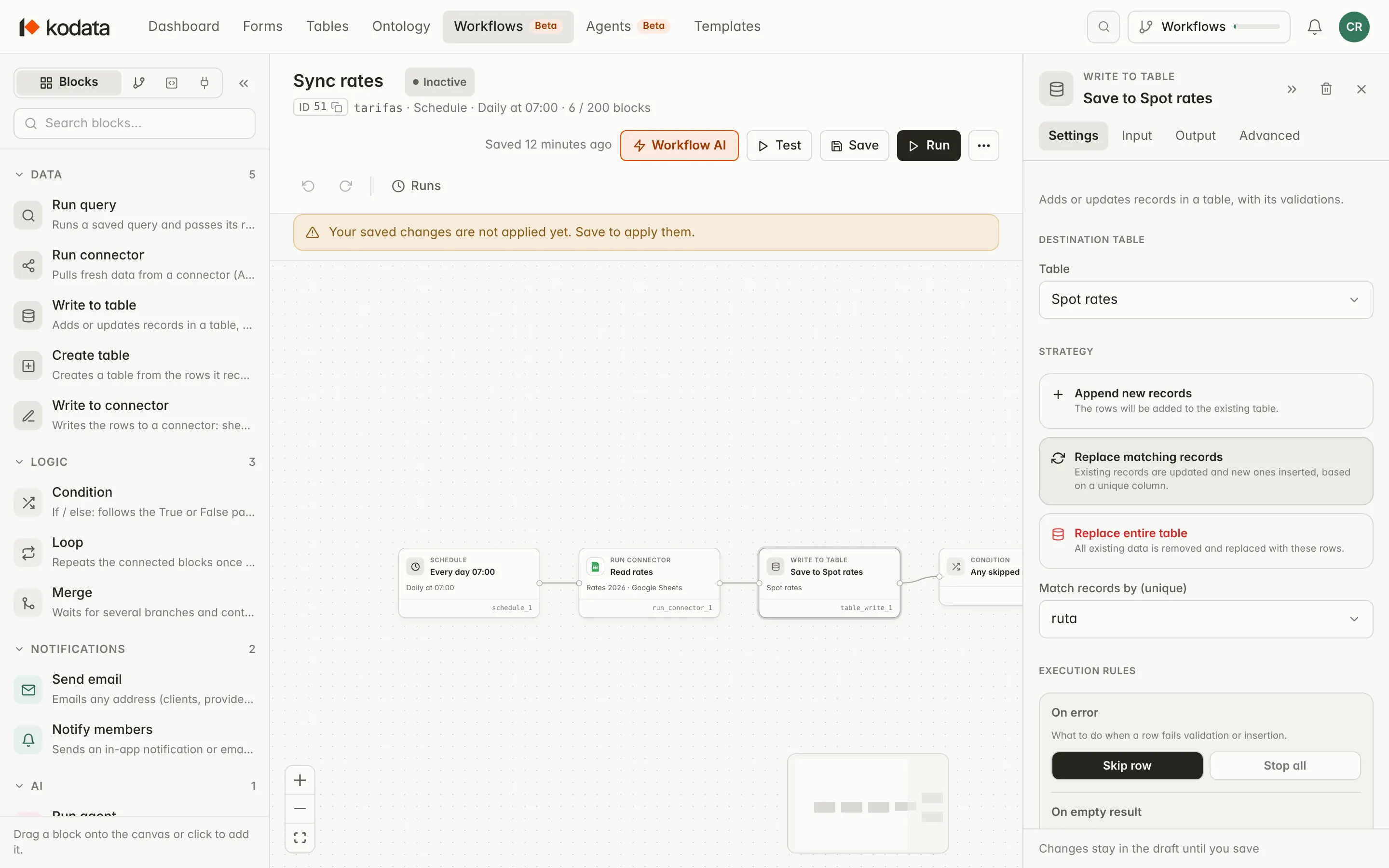
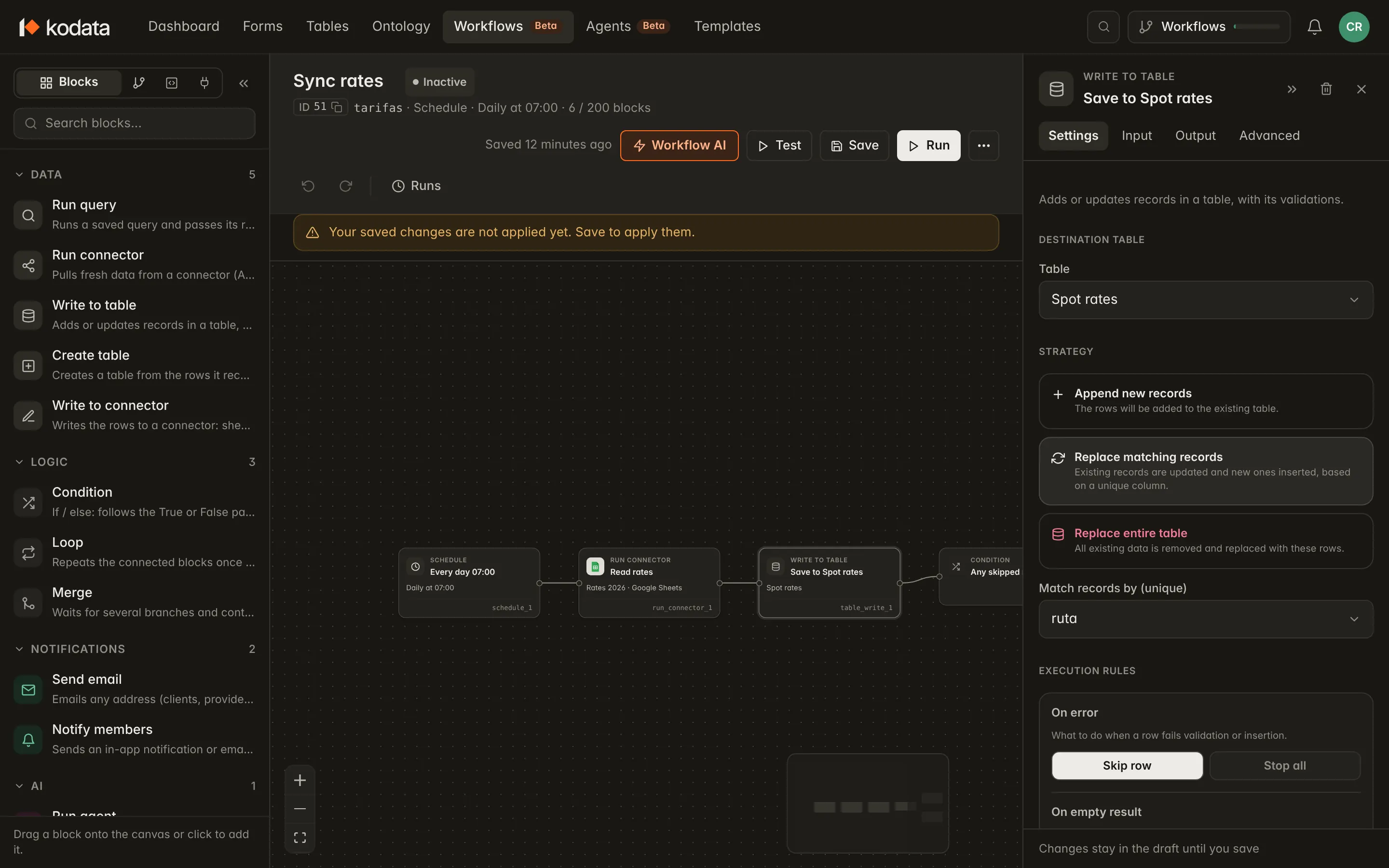
- Add Write to table and connect it.
- Choose the target Table.
- Choose the Strategy:
- Append new records: adds rows.
- Replace matching records: updates rows that match on a unique column (Match records by) and inserts the rest.
- Replace entire table: deletes everything and writes the new rows.
- Under On error, choose Skip row or Stop all. If field names don't match the columns, map them.
6. Alert if something failed
- Add a Condition after Write to table:
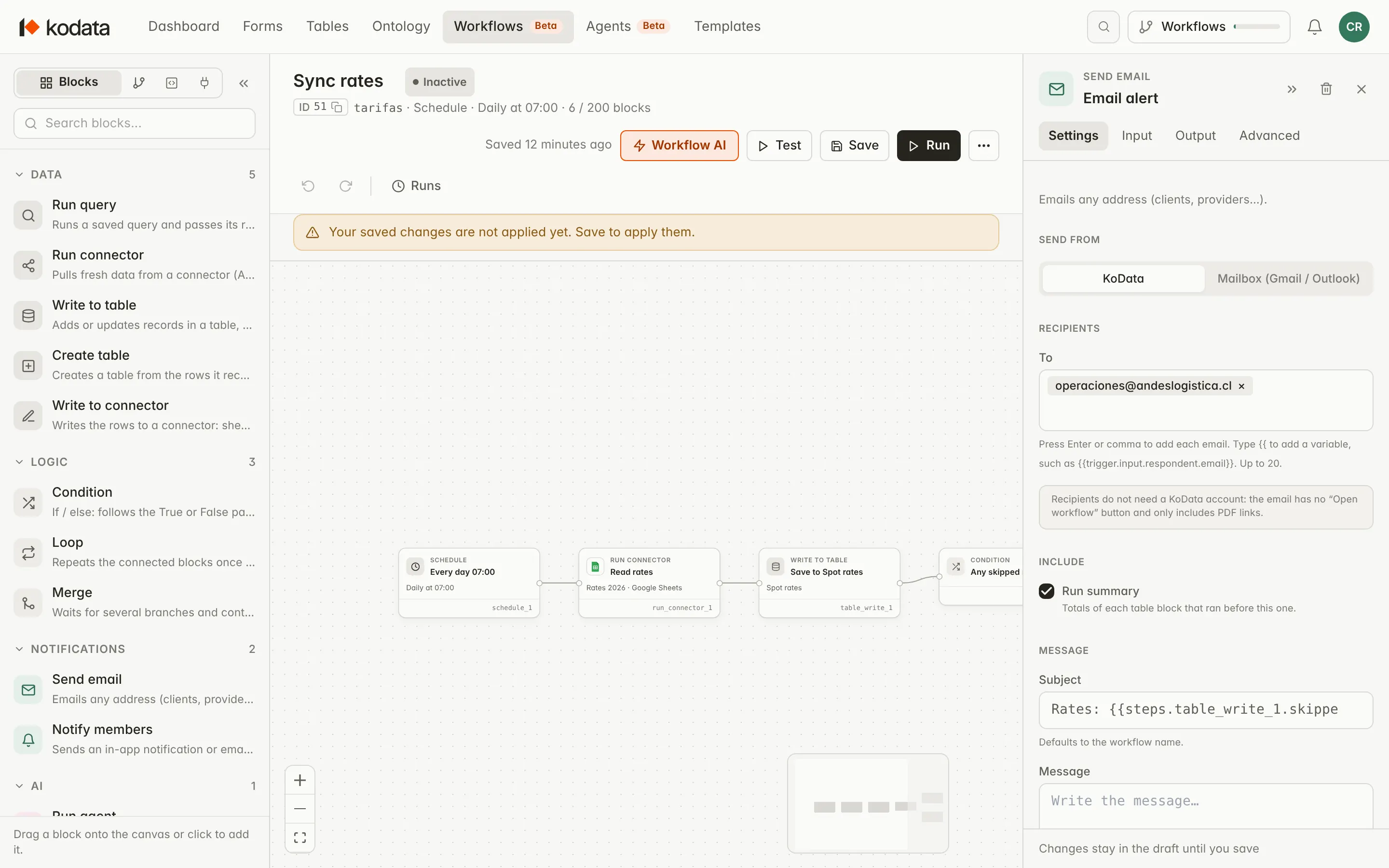
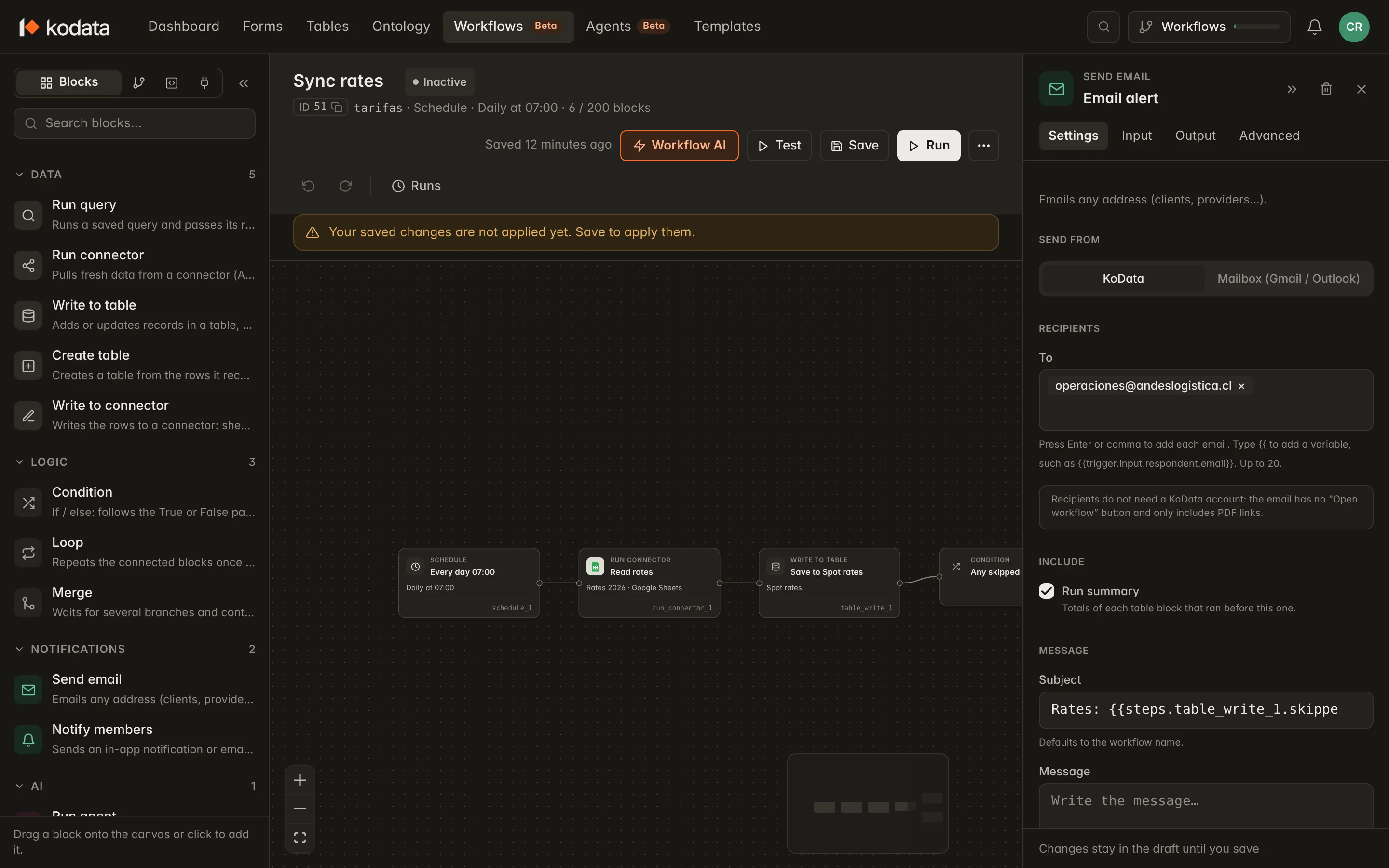
{{steps.table_write_1.skipped}}is greater than0. The True path only continues if rows were skipped. - On the True path, add Send email: To (up to 20 addresses,
{{variables}}too), Subject and Message. It can include the Run summary.
- For Slack, add Write to connector with a Slack connector (bot token) and the send-message operation to your channel. To alert inside KoData, use Notify members.
7. Test, save and activate
- Click Test. The workflow runs right away (without waiting for the schedule) and you see the path and each block's output. Blocks that write or send are simulated in a test.
- Click Save. If there are problems, KoData marks them and doesn't apply the changes until you fix them.
- Activate it from the workflow's ⋯ menu in the left bar (Activate). While it's Inactive, the schedule doesn't run.
Result: every day at 07:00 the Spot rates table is updated. In Runs you see each run, its status and per-block detail. If a run fails, it shows up in the Dashboard's Needs your attention and in your notifications.
Useful variables
| Variable | What it brings |
|---|---|
{{steps.<block>.rows}} |
The rows a block returned. |
{{steps.<block>.total_count}} |
How many rows. |
{{steps.table_write_1.inserted}}, .updated, .skipped |
Result of Write to table. |
{{trigger.input}} |
What started the workflow (webhook, event, form). |
Limits
Workflows: 2 on Free, 20 on Team, 100 on Business. Runs per month: 100, 10,000 and 100,000. Blocks per workflow: 25, 100 and 200. Maximum duration: 5, 15 and 60 minutes.
Next step
Invite your team. For more blocks, see Workflows and Connectors.
If something fails
| Symptom | What to do |
|---|---|
| The schedule doesn't run | The workflow is Inactive or Paused: activate it from ⋯. |
| Save the workflow before activating it. | Click Save first. |
| Saved, but not applied: fix the highlighted problems. | Check the marked blocks; the previous version keeps running. |
| Google asks you to reconnect | The authorization expired or was revoked. See Connectors and OAuth. |
| Write to table writes nothing | No field matches a column: check the mapping. |
| You can't choose Schedule | Your plan is Free. See Plan limits. |