Create a query with variables
Write a SQL query on your tables and make it reusable with {{ }} variables.
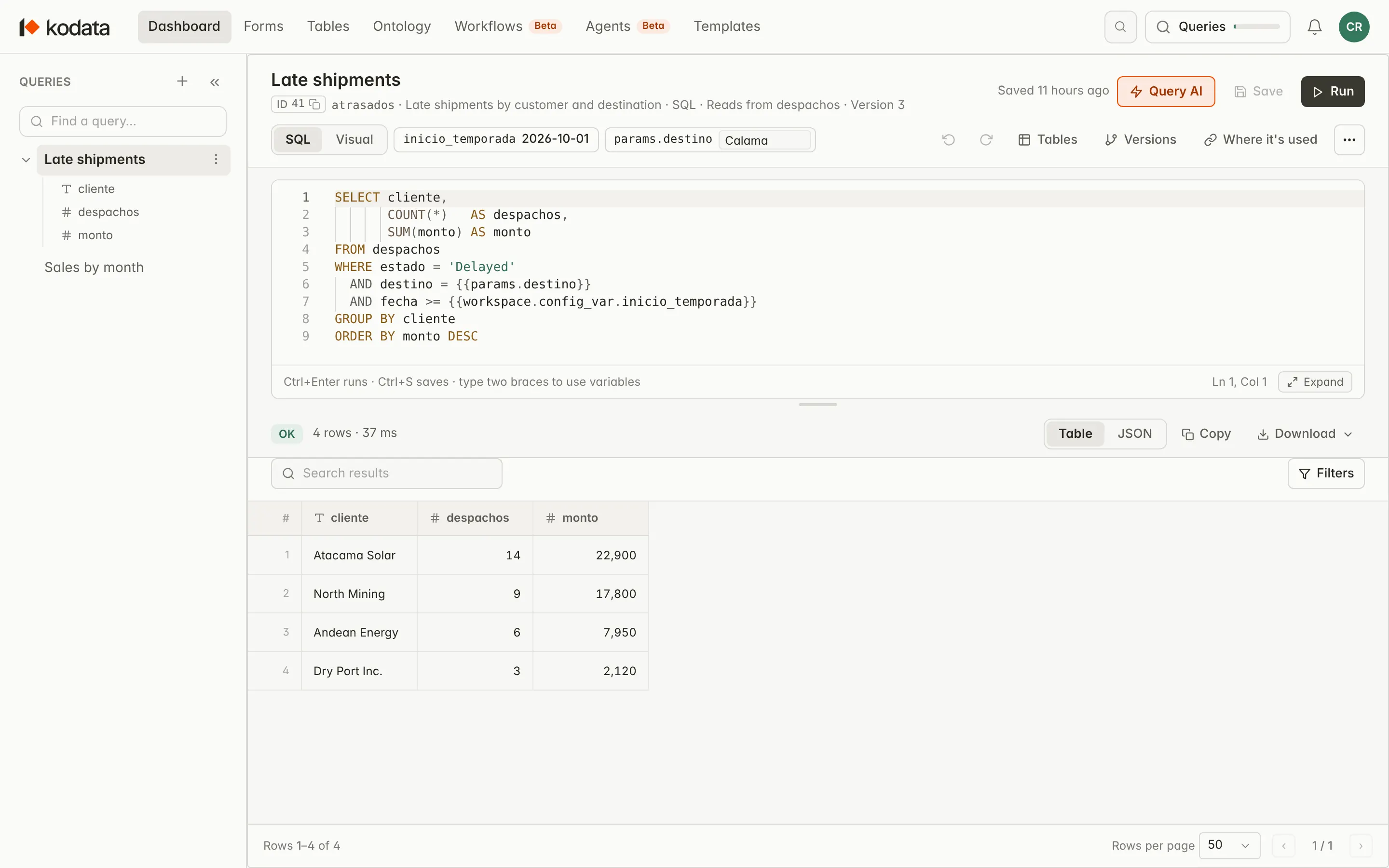
Goal: the Late shipments query: how many late shipments and what amount each customer has, for one destination and from a cut-off date.
Requirements: a role that can create queries (Owner, Admin or Editor) and a table with data (for example the one from the previous guide). For {{workspace.config_var…}}, Team plan or higher.
Time: 10 minutes.
1. Create the query
- In Dashboard › Your work, click Create › Query. An Untitled query, just for you, is created and its panel opens.
- Click its name. In Edit Query, type the Query Name (for example Late shipments), change the slug with Change (for example
atrasados), confirm it with Save and click Save Changes. The slug,{{query.<slug>}}, is how connectors refer to it. - If others should use it: More actions (⋯) › Access.
Tip: To come back to a query, open it from Your work (Queries tab) or type its name in Ctrl+K: its panel opens.
2. Write the SQL
- In the editor, write your query. Use each table's and column's slug, not the display name:
SELECT cliente,
       COUNT(*)   AS despachos,
       SUM(monto) AS monto
FROM despachos
WHERE estado = 'Delayed'
  AND destino = {{params.destino}}
  AND fecha >= {{workspace.config_var.inicio_temporada}}
GROUP BY cliente
ORDER BY monto DESC
- Type
{{to see the available variables: configuration variables, user data, attributes and parameters.
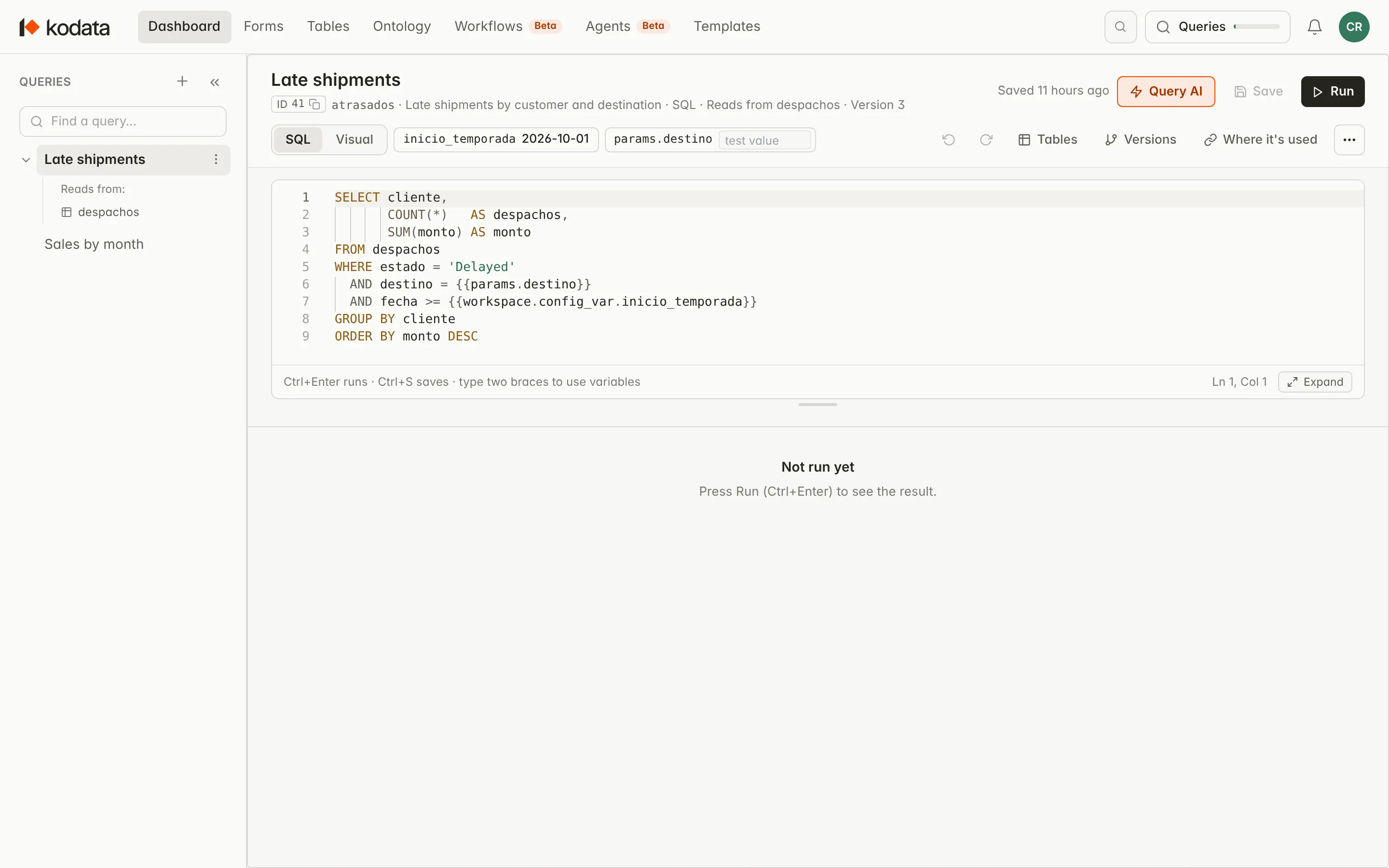
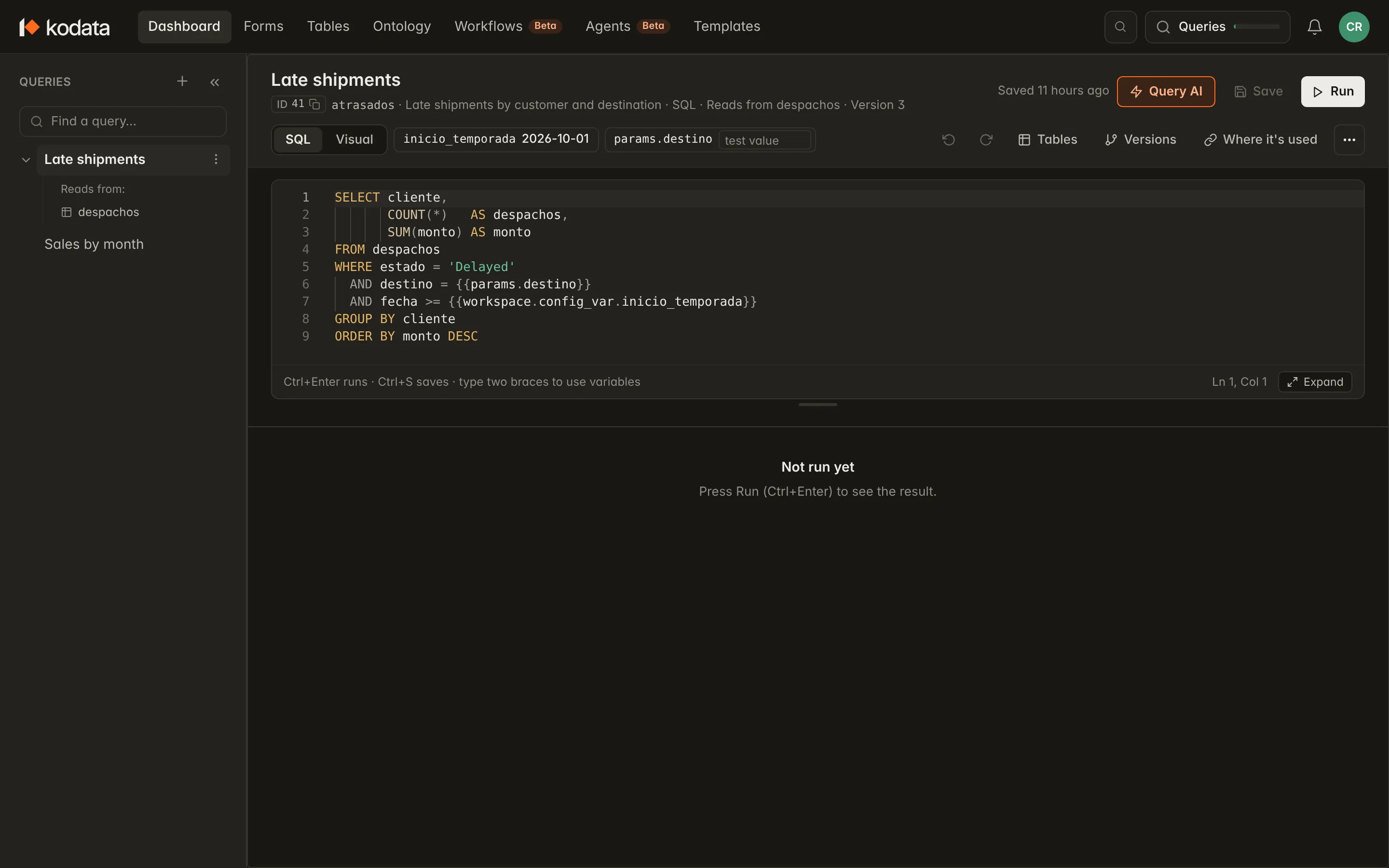
Above the editor, configuration variables and parameters show up as tags: {{workspace.config_var.inicio_temporada}} shows its current value; {{params.destino}} asks for a test value.
3. Run it with a test value
- Type the test value for each parameter (for example
Calama).
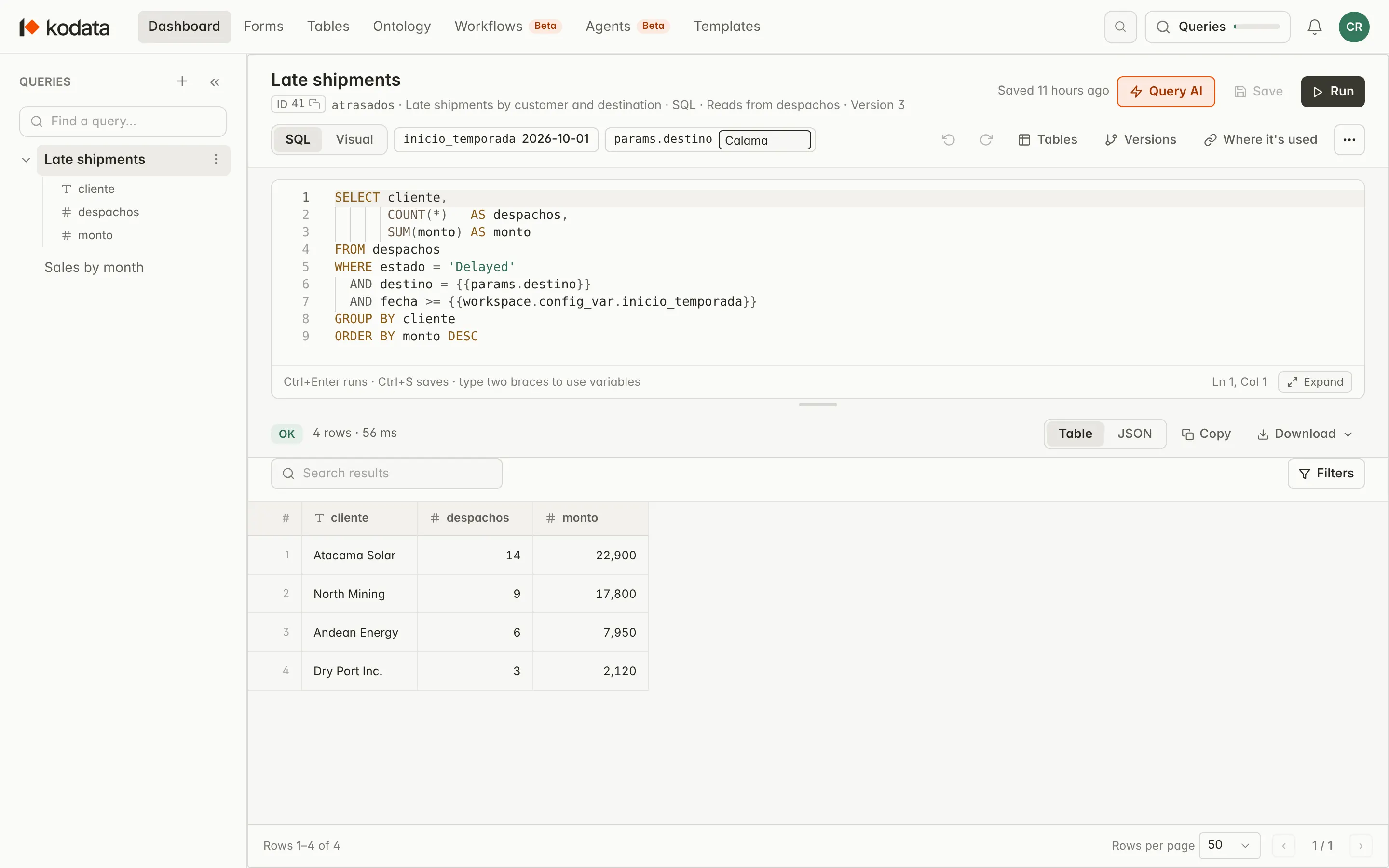
- Click Run (or Ctrl+Enter).
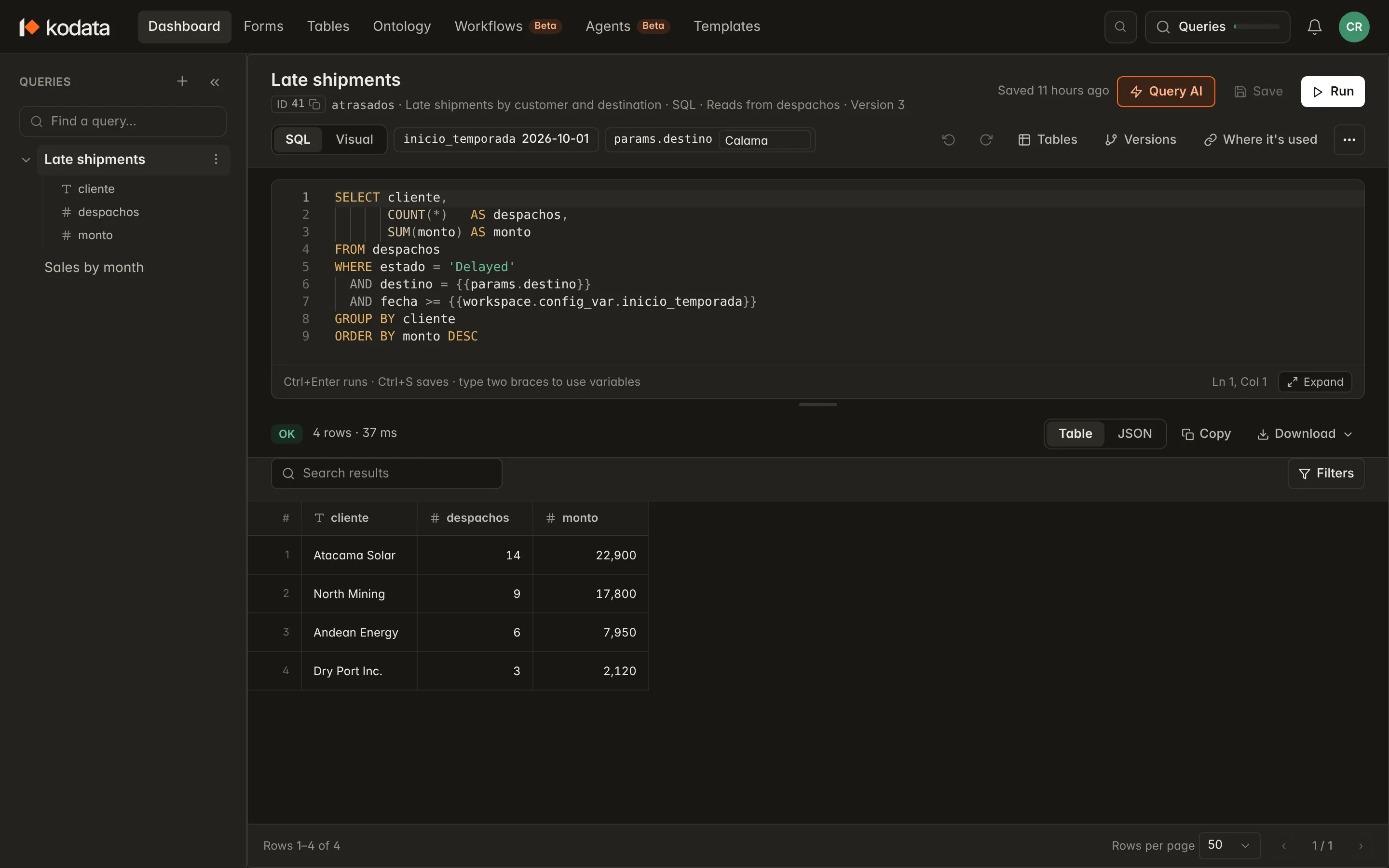
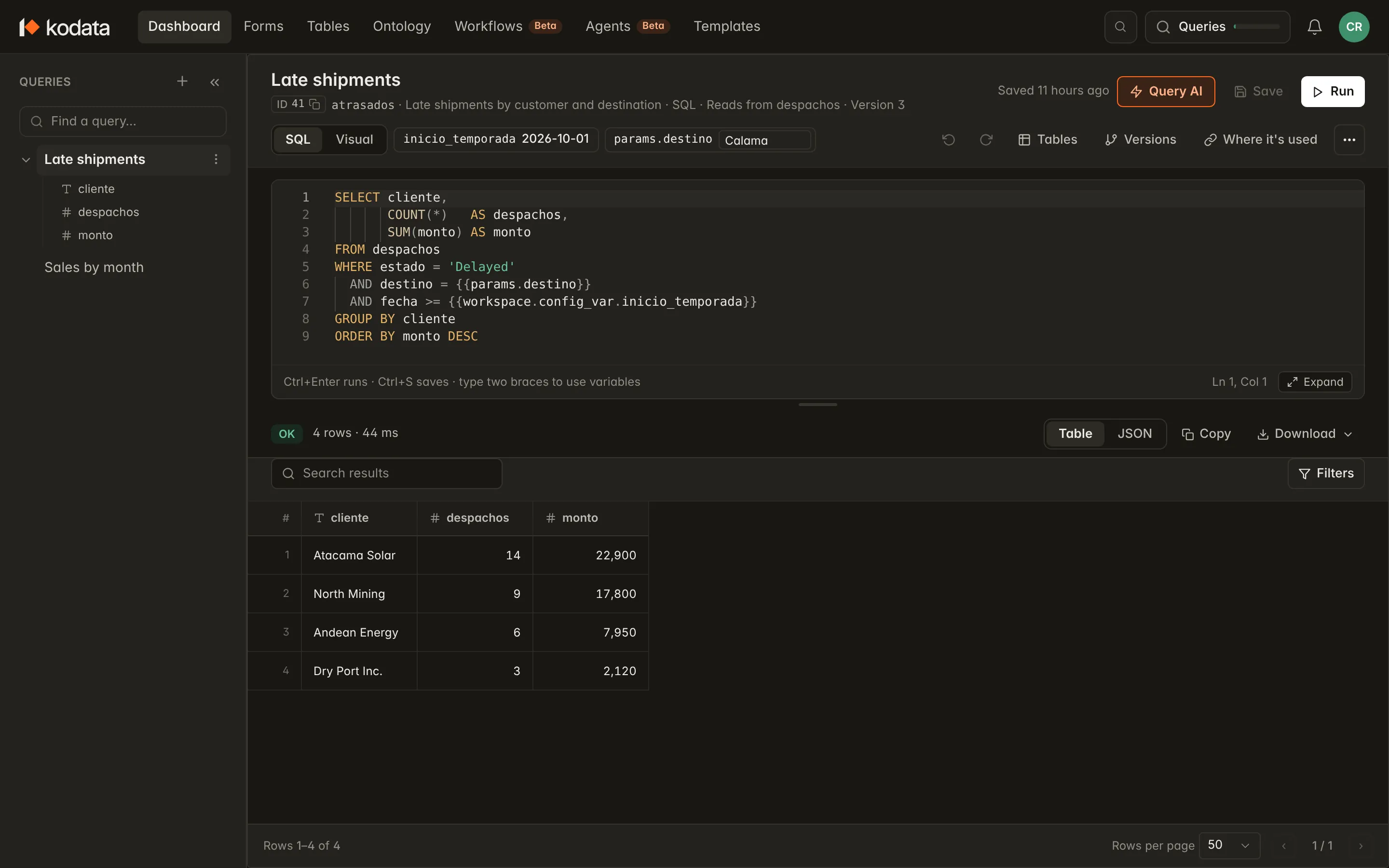
Result: the result shows up below, with the row count and the time. You can see it as Table or JSON, Copy it or Download it.
- Save with Ctrl+S. Each save creates a version; you see them in Versions.
Variables you can use in SQL
| Variable | Value |
|---|---|
{{workspace.config_var.<slug>}} |
The configuration variable for the active environment. Secret ones aren't allowed in SQL. |
{{current_user.id}}, .name, .email, .role |
Who runs it. In a dashboard, the person viewing it; in a workflow, its owner. |
{{current_user.attributes.<key>}} |
A member attribute (for example region). |
{{params.<name>}} |
What a workflow's Run query block passes, or the test value. |
{{visitor.email}}, {{visitor.<field>}} |
The visitor who signed in to a dashboard link. Without a visitor it's NULL. |
KoData adds the quotes for you: write destino = {{params.destino}}, not '{{params.destino}}'. A list becomes 'a', 'b', handy for IN ({{params.destinos}}).
Where to use the query
- In a dashboard: as the source of a chart, KPI or table (Data Source › Query). See the dashboard guide.
- In a workflow: with the Run query block, which passes its rows to the next blocks and fills
{{params.*}}. - In a connector:
{{query.<slug>.column}}reads the first row. - Where it's used (top right) shows which dashboards and workflows use it.
Limits
- Queries per day: 50 on Free, 10,000 on Team, 100,000 on Business.
- Rows per run: up to 100,000.
- Read only:
INSERT,UPDATE,DELETEand schema changes aren't allowed. To write data use workflows, forms or the API.
Next step
Show the result in a dashboard.
If something fails
| Message | What to do |
|---|---|
| Column "…" doesn't exist in "…". | KoData marks the line and suggests the right column. Click the suggestion. |
| Configuration variable "…" doesn't exist in this workspace. | Create it in Settings › Configuration Variables or fix the slug. |
| User attribute "…" doesn't exist… | Create it in Settings › User Attributes. |
| A parameter is missing | Type its test value or pass it from the workflow block. |
| Daily query limit | Wait for the reset (workspace midnight) or upgrade. |