Rows, filters and views
Edit data by hand, filter what you need and save how you want to see it.
Requirements: editing rows needs permission to edit the table.
Add and edit rows
- Add row (top right) opens a form with the table's columns.
- Double-click a cell to edit it. Changes stay pending until you click Save Changes.
- Tick rows with the checkbox on the left: with one row, Edit; with two or more, Bulk edit (pick the Column and New value, then Apply); Delete removes the ticked rows.
- Select all N rows extends the selection to every page.
Search and filter
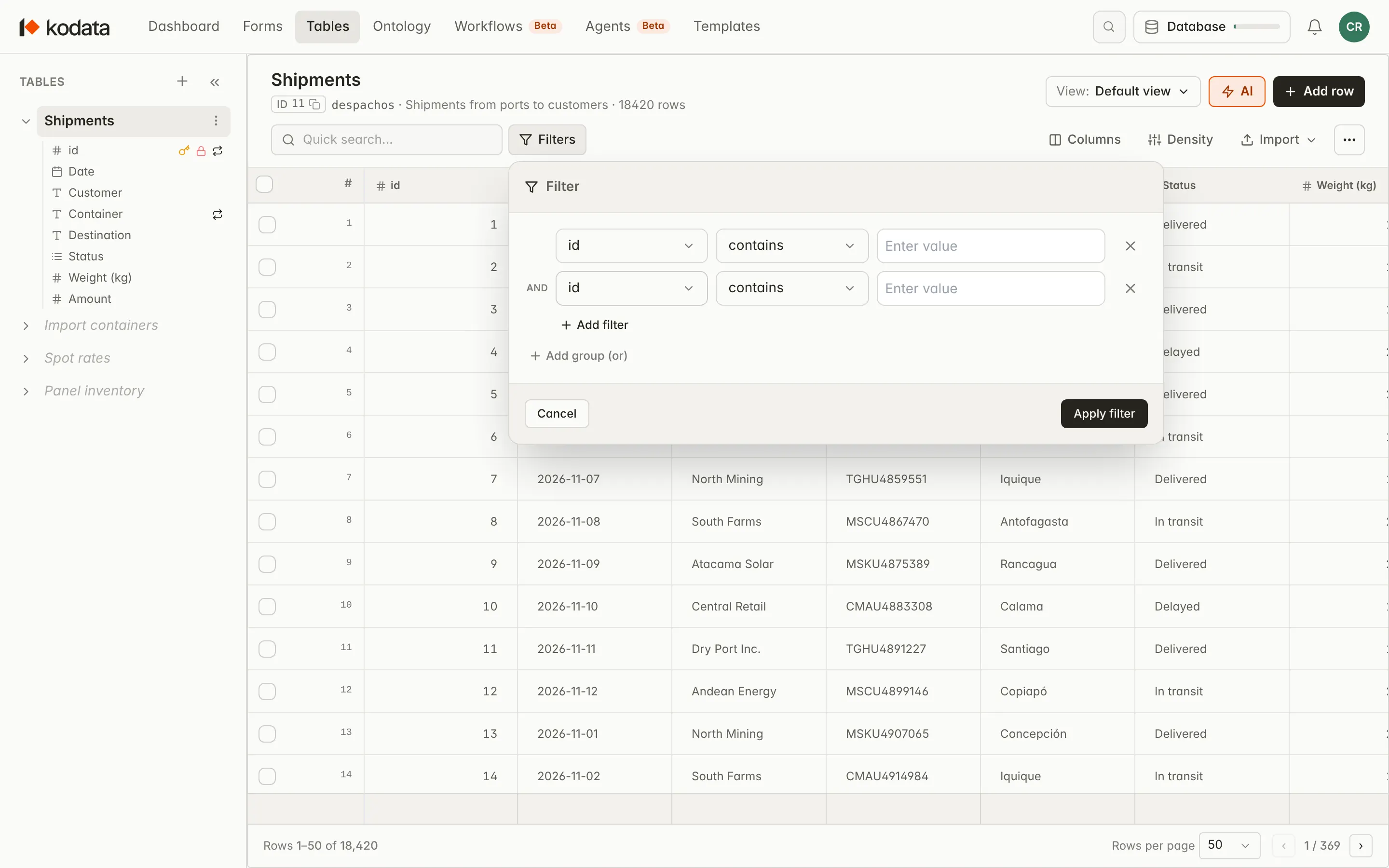
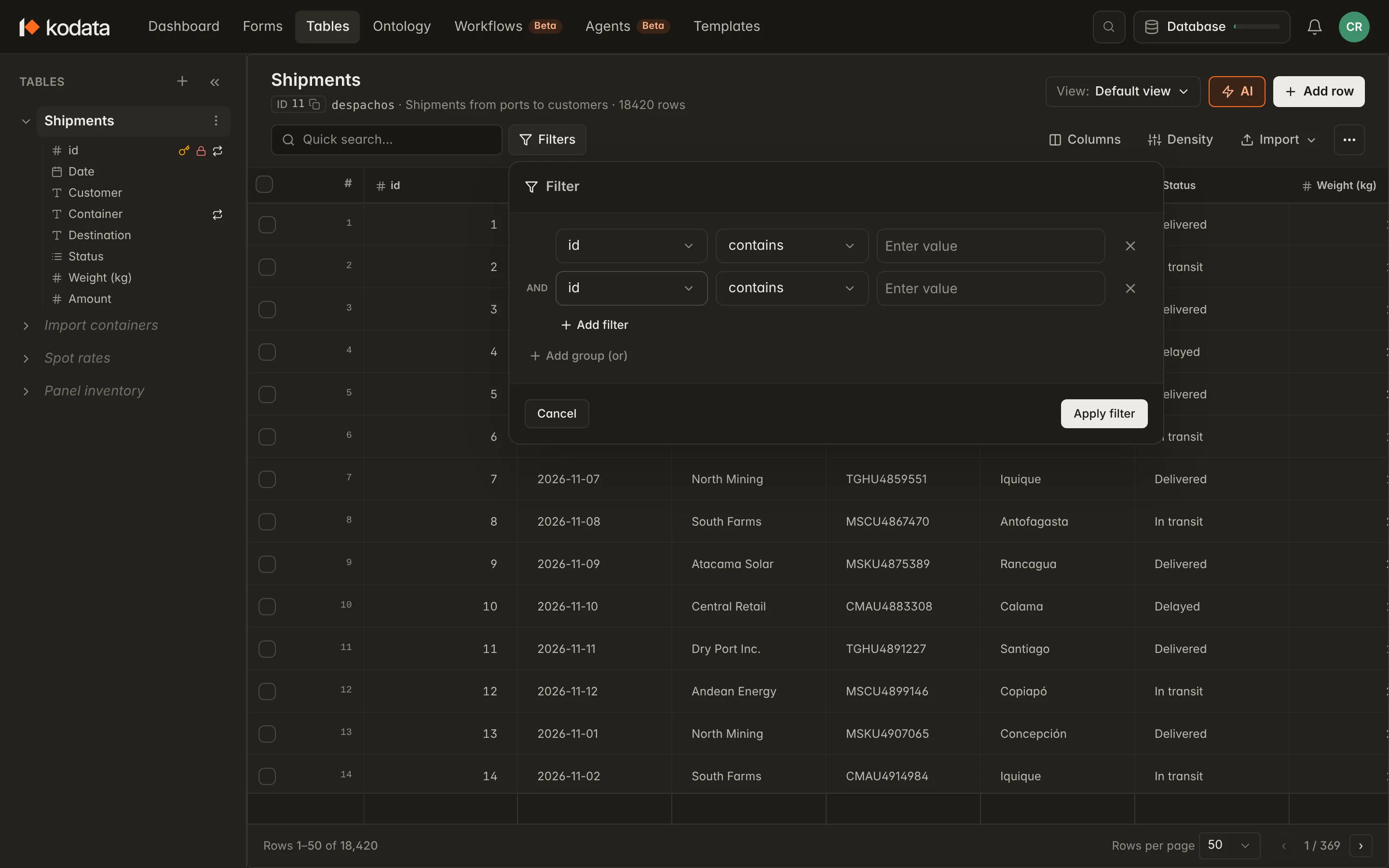
- Quick search... searches every row of the table (not just the visible page) and combines with the filters.
- Filters opens the advanced filter: Add filter adds conditions (all must match) and Add group (or) creates alternatives (rows match if any one group matches). Click Apply filter.
Columns and density
- Columns shows or hides columns in your view.
- Density changes the row height.
Saved views
- Set up filters, sorting and columns.
- Open the View: selector and use Save the current view as, with a name.
- Come back to it from Saved Layouts. Custom Layout means you have unsaved changes.
Export
In More actions (⋯) › Export: Current view (visible rows and columns) or All data (CSV).
Dates and time zone
Date-times are stored and shown in the workspace time zone (Settings › Workspaces). The date and number format is set in Settings › Advanced Settings › Formats.