Create a table and choose column types
Create a table from scratch, from a file or with AI.
Requirements: a role that can create tables (Owner, Admin or Editor).
From scratch
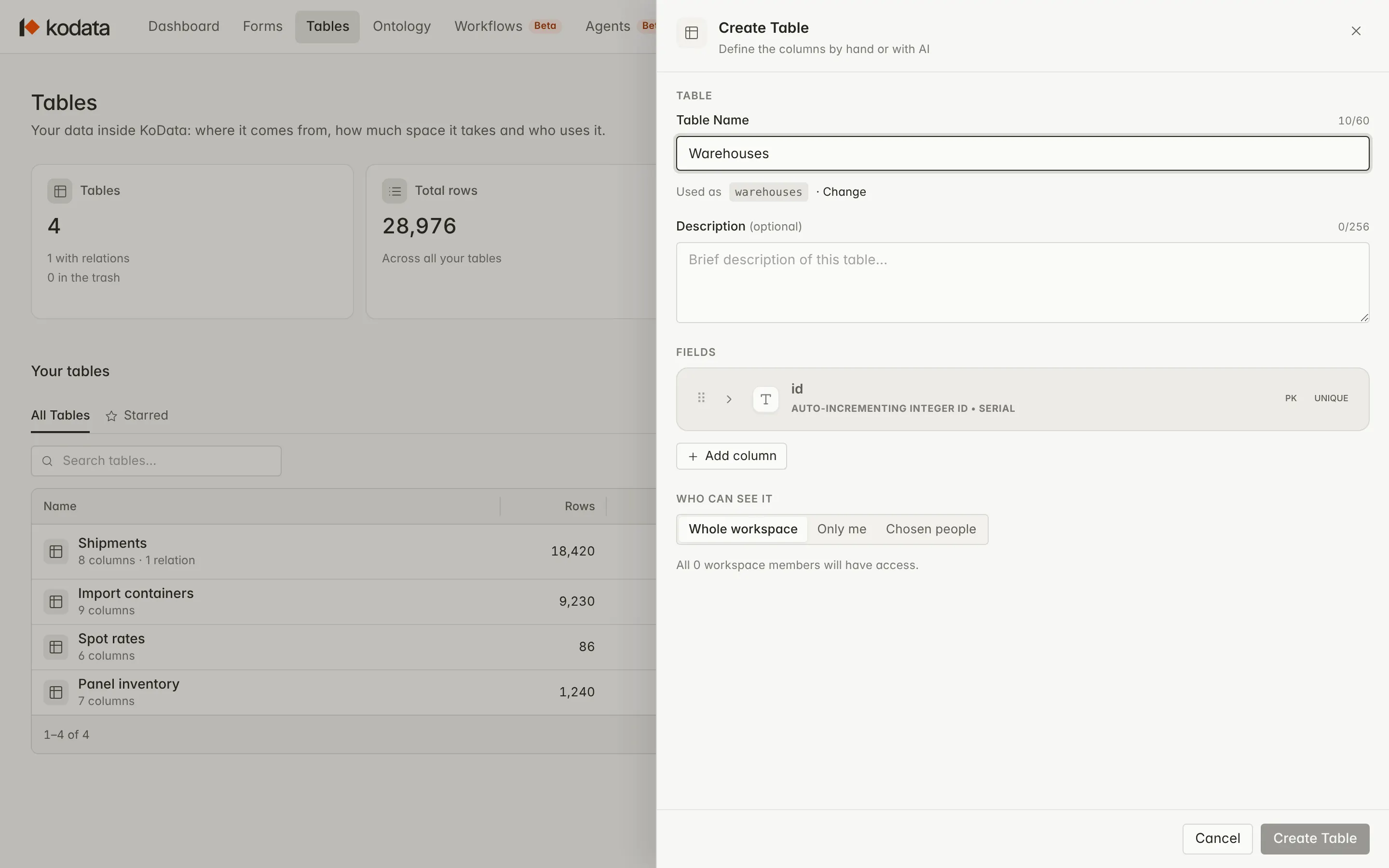
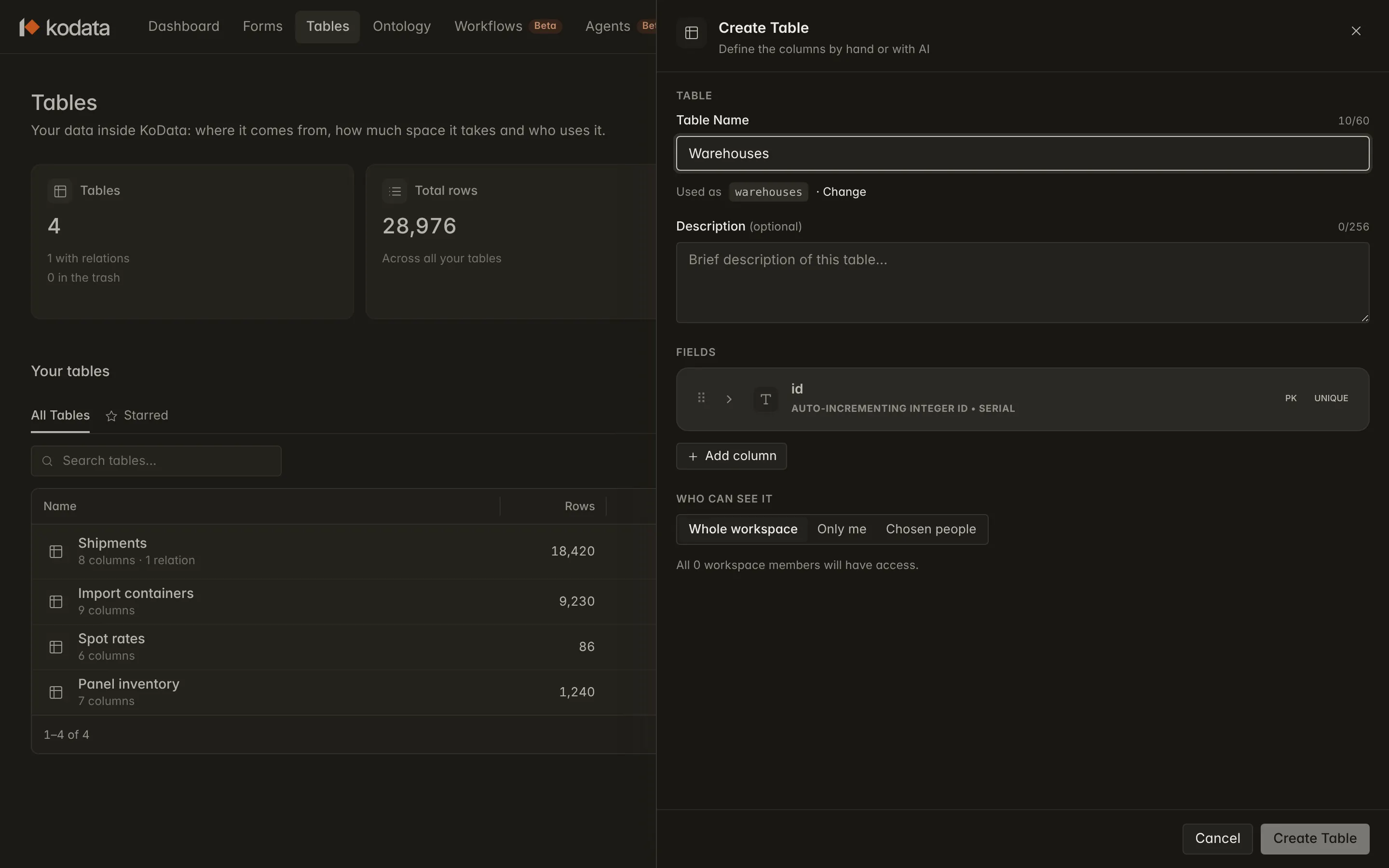
- In Tables, click Create and choose New Table. (Also with + in a table's sidebar.)
- Type the Table Name and, if you like, a Description.
- Under Fields, review the columns and use Add column to add more. For each one you pick the name, the type and its rules.
- Under Who can see it, choose Whole workspace, Only me or Chosen people.
- Click Create Table.
From a file
Create › From CSV accepts .csv and .xlsx files up to 100 MB. See Guide: import a CSV or Excel file.
With AI
Create › Build with AI opens the Dashboard chat with Table selected: describe the table ("Orders with customer, date, amount and status") and the AI creates it. It only shows when AI is on.
Column types
| Type | Stores | Notes |
|---|---|---|
| Text | Free text. | |
| Number | Whole numbers or decimals. | Integer or Decimal format; how it's shown (currency, percent, thousands) is adjusted later. |
| Checkbox | True or false. | |
| Enum | One value from a list of options. | A value outside the list is rejected. Existing options can't be changed; you can add more. |
| JSON | A JSON object or array. | |
| Date, Date + Time, Time | Dates and times. | The load format is picked when importing; the time zone is the workspace's. |
| Foreign key | A value that exists in another table. | You pick the Reference Table, Reference Field, Display Column and what happens On delete. |
| Auto-incrementing Integer ID | A number KoData assigns. | Typical for the primary key. |
| Calculated | The result of a formula over other columns. | See Columns. |
Important: A column's type can't be changed after it's created. If you got it wrong, create another column with the right type.