Columns: add, edit, calculate and color
Everything about a column is handled from its header.
Requirements: permission to edit the table.
The column menu
Hover the header and open its menu:
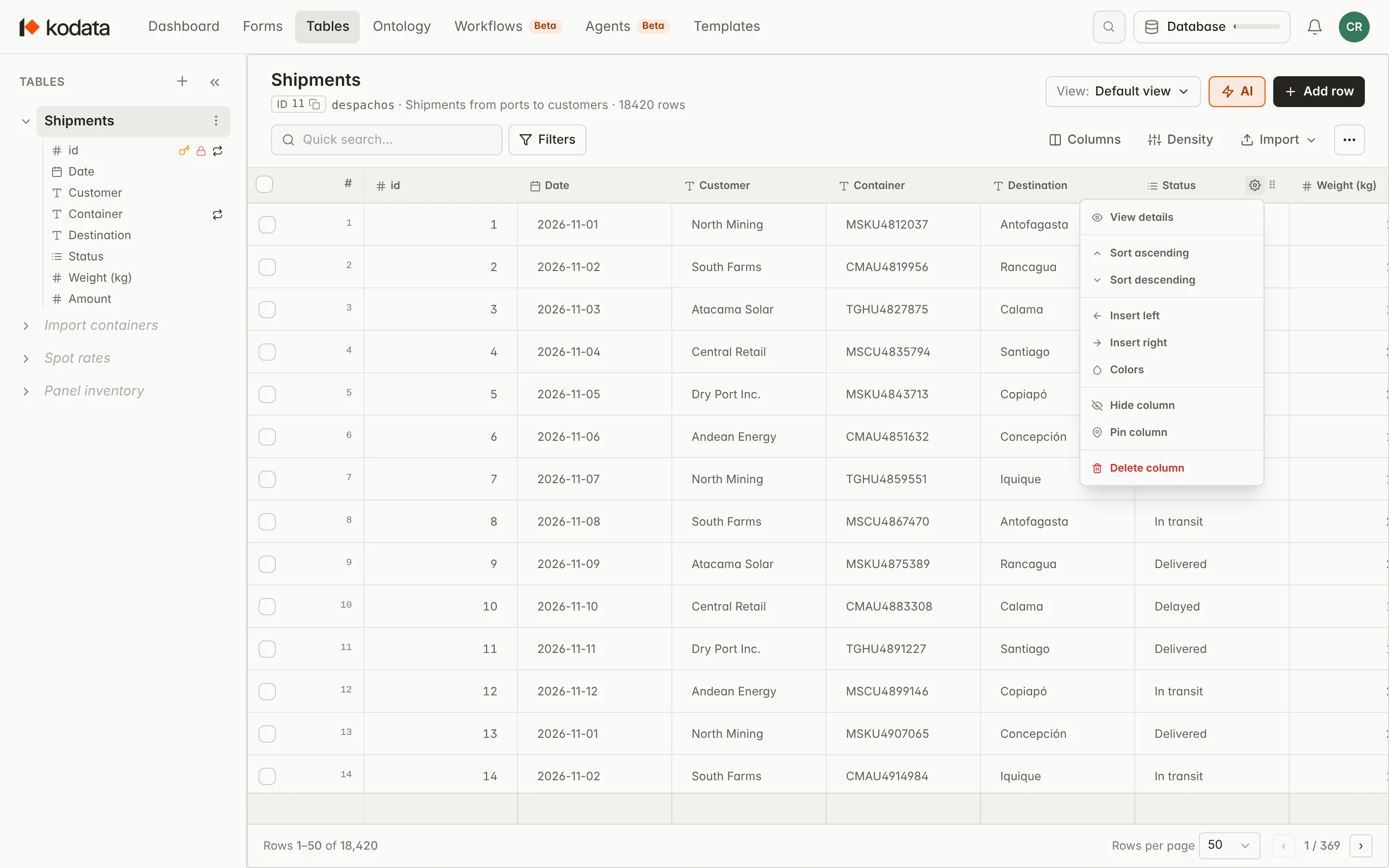

| Option | What it does |
|---|---|
| View details | Opens Column details to edit it. |
| Sort ascending / descending | Sorts the grid by that column. |
| Insert left / right | Opens Add Column at that position. |
| Colors | Color rules for the cells. |
| Hide column / Pin column | Only change your view. |
| Delete column | Deletes it with its data. Not possible if it's the primary key or a foreign key uses it. |
Add a column
- Choose insert left or right in a column's menu.
- In Add Column, type the Column name (the slug is generated) and pick the Data type.
- Set Nullable, whether it's unique, the Enum options or the Relation Configuration (foreign keys).
- Click Create Column.
If the table already has rows, a column that doesn't allow nulls needs a default value.
Edit a column
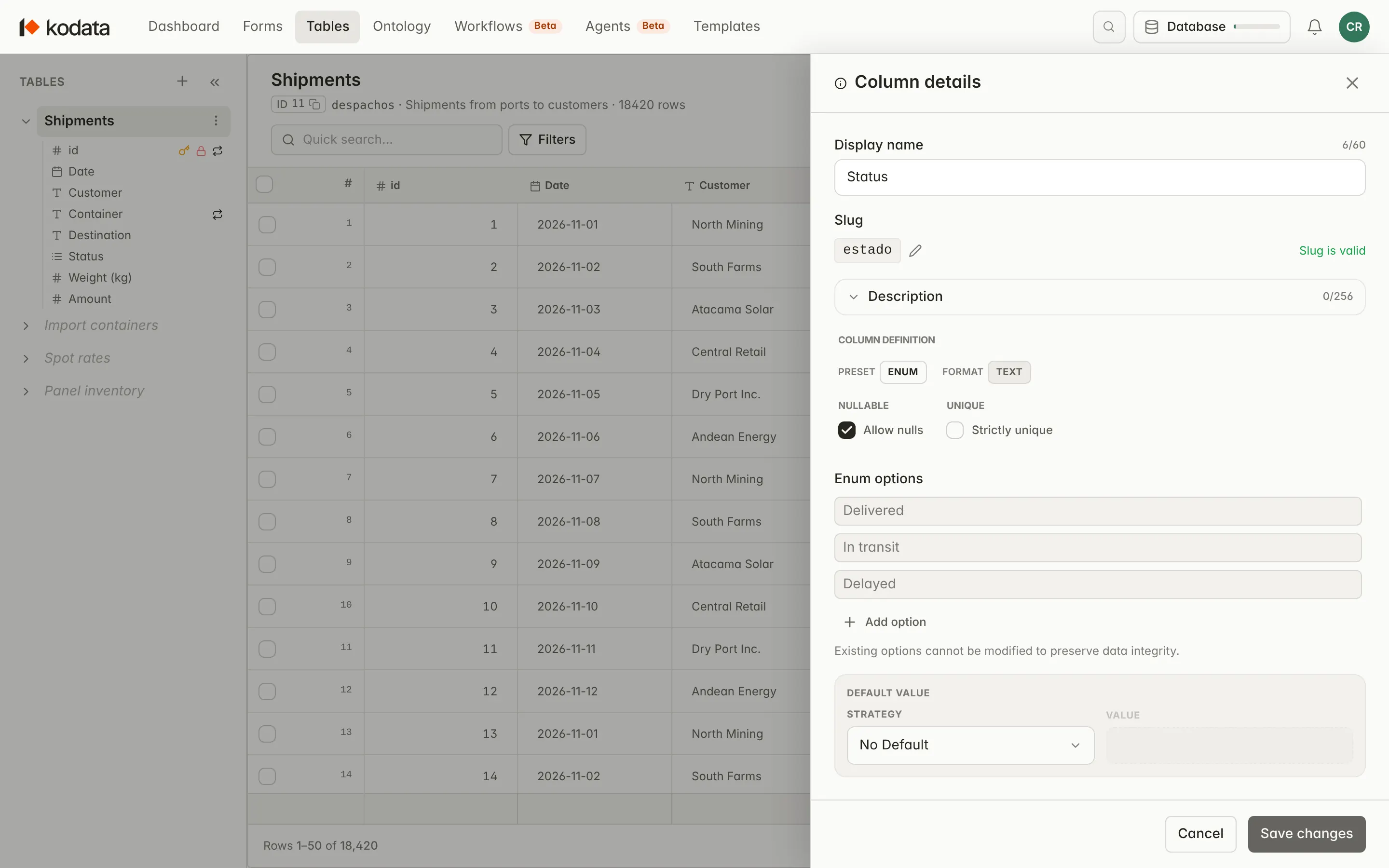
- Choose View details.
- Change the Display name, the Slug or the Description; whether it allows nulls or is unique; add enum options; set the Default value.
- Click Save Changes.

Calculated columns
- Open More actions (⋯) and choose Calculated column (or Calculated column with AI).
- Type the Column name and the formula, using the table's columns by slug. Generate with AI writes it for you from a description.
- Check the Output type (auto-detected) and How it is shown.
- Tick Apply this formula to existing records if you want to recalculate the rows already there.
- Click Create Column (or Save Changes when editing an existing one).
Colors
In Colors you add rules with Add rule: the cell takes the color of the first rule that matches. Click Save.