Tables: the list and the table view
Tables hold your workspace's data with typed columns and rules. Everything that writes data (manual edits, imports, forms, workflows and the API) goes through the same validation.
Requirements: seeing tables needs your role's Tables permission and access to each table.
The table list
- In the main menu, click Tables.
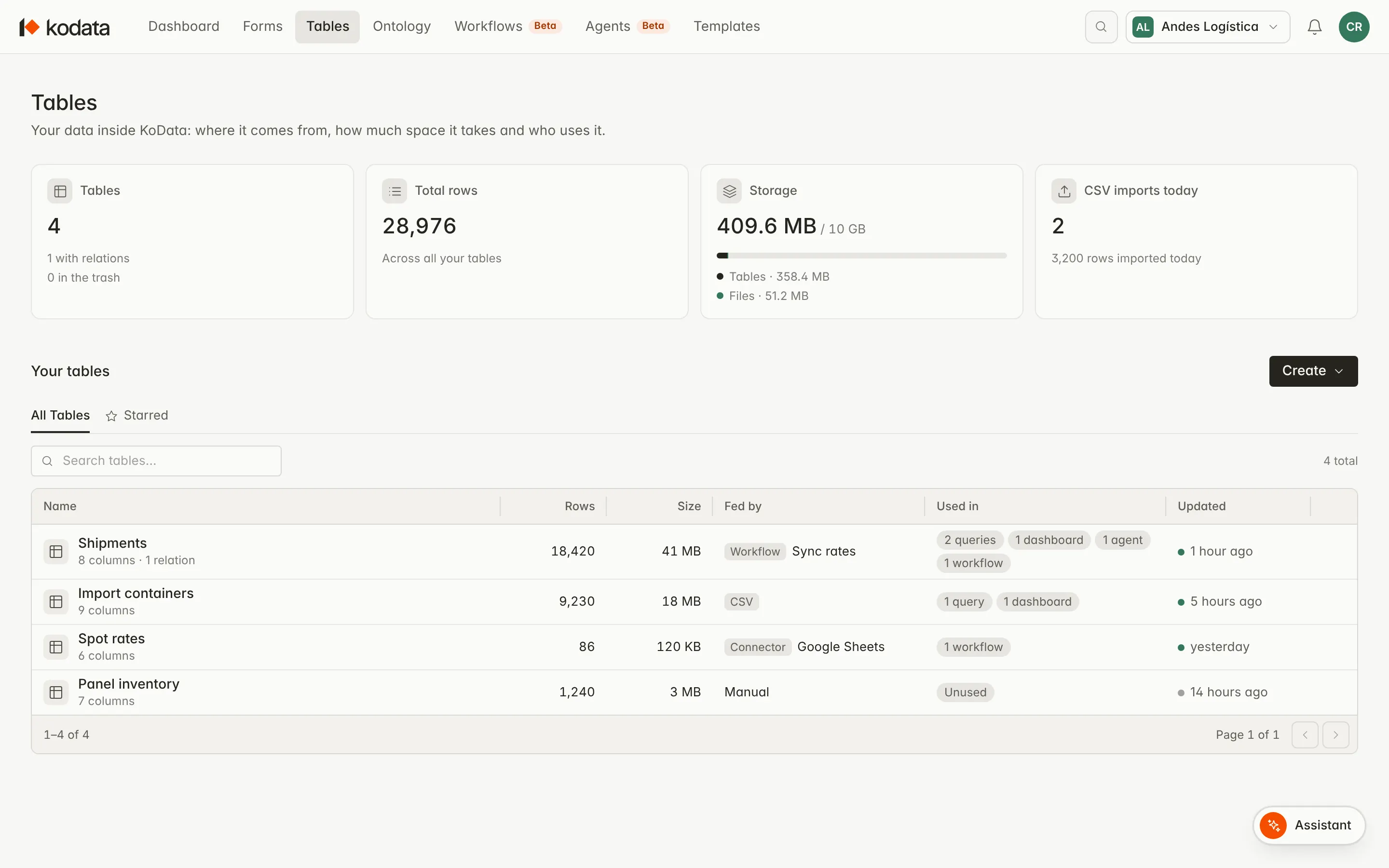
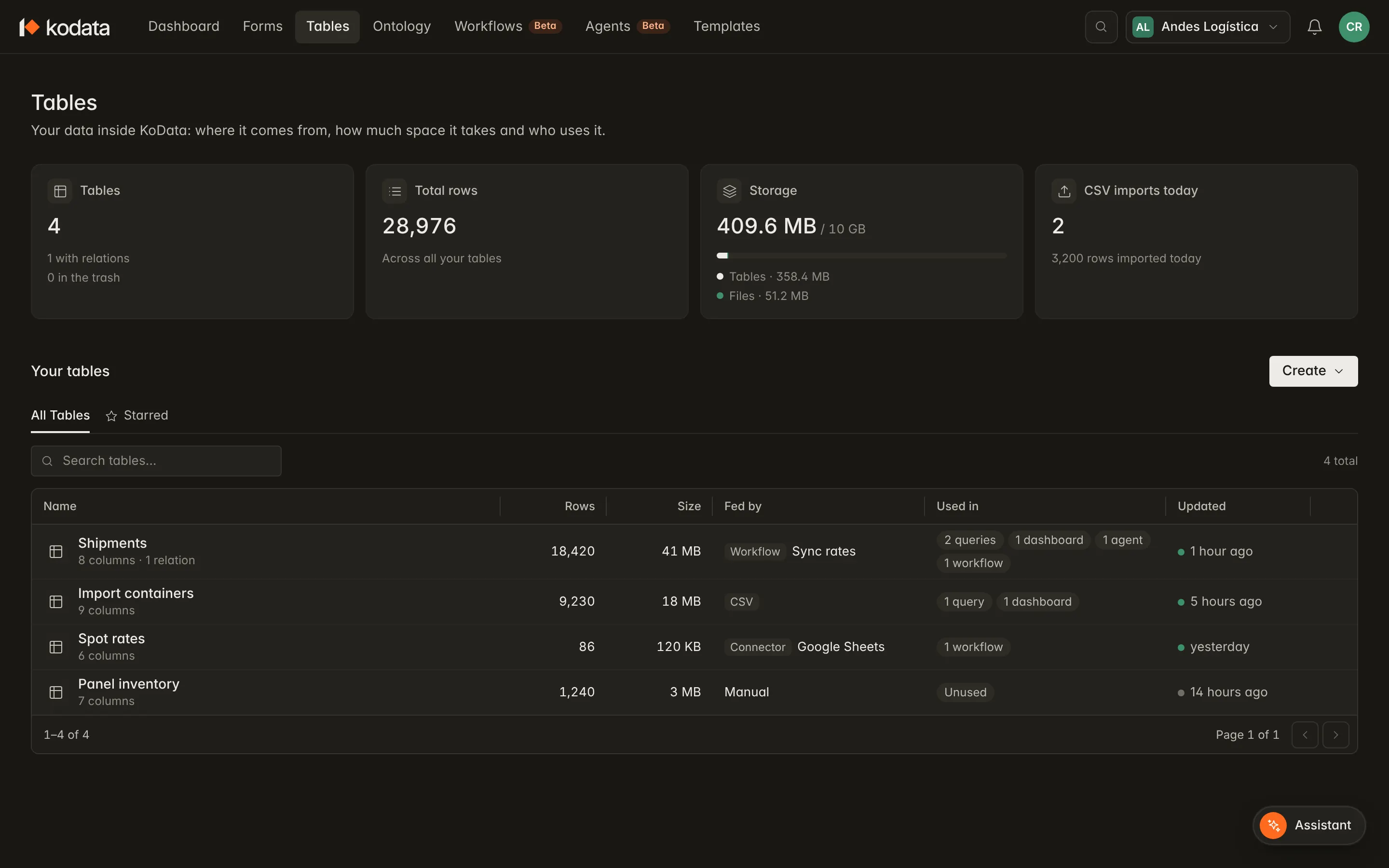
- At the top you see the summary: Tables, Total rows, plan Storage used and CSV imports today.
- Under Your tables, each row shows Rows, Size, Fed by (CSV, connector, workflow, form, agent or manual), Used in (queries, dashboards, agents, workflows) and when it was updated.
- Filter with All Tables, Starred or Trash, or type in Search tables....
- Click a table to open it. Right-click (or the row menu) gives you the table's actions.
The table view
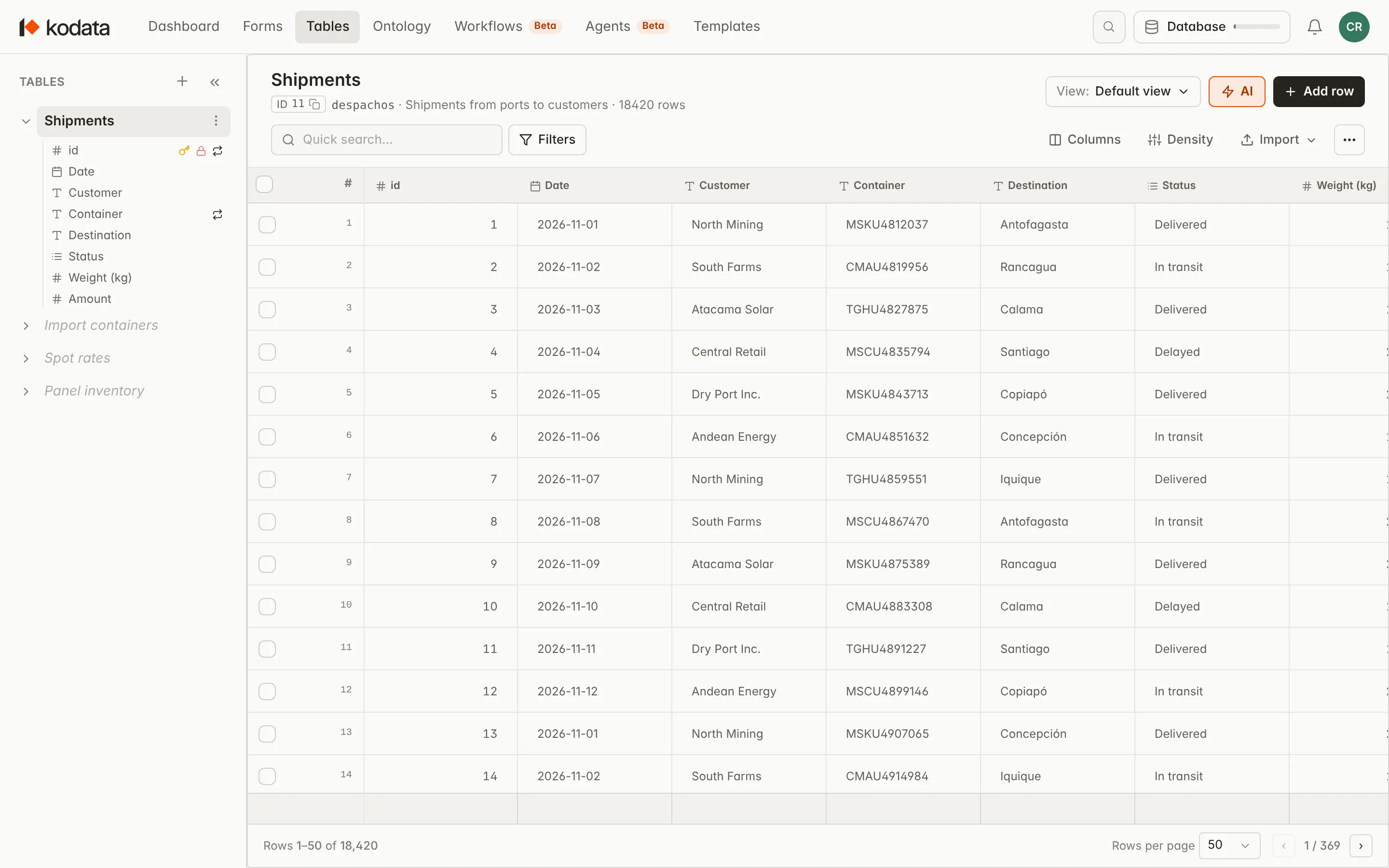
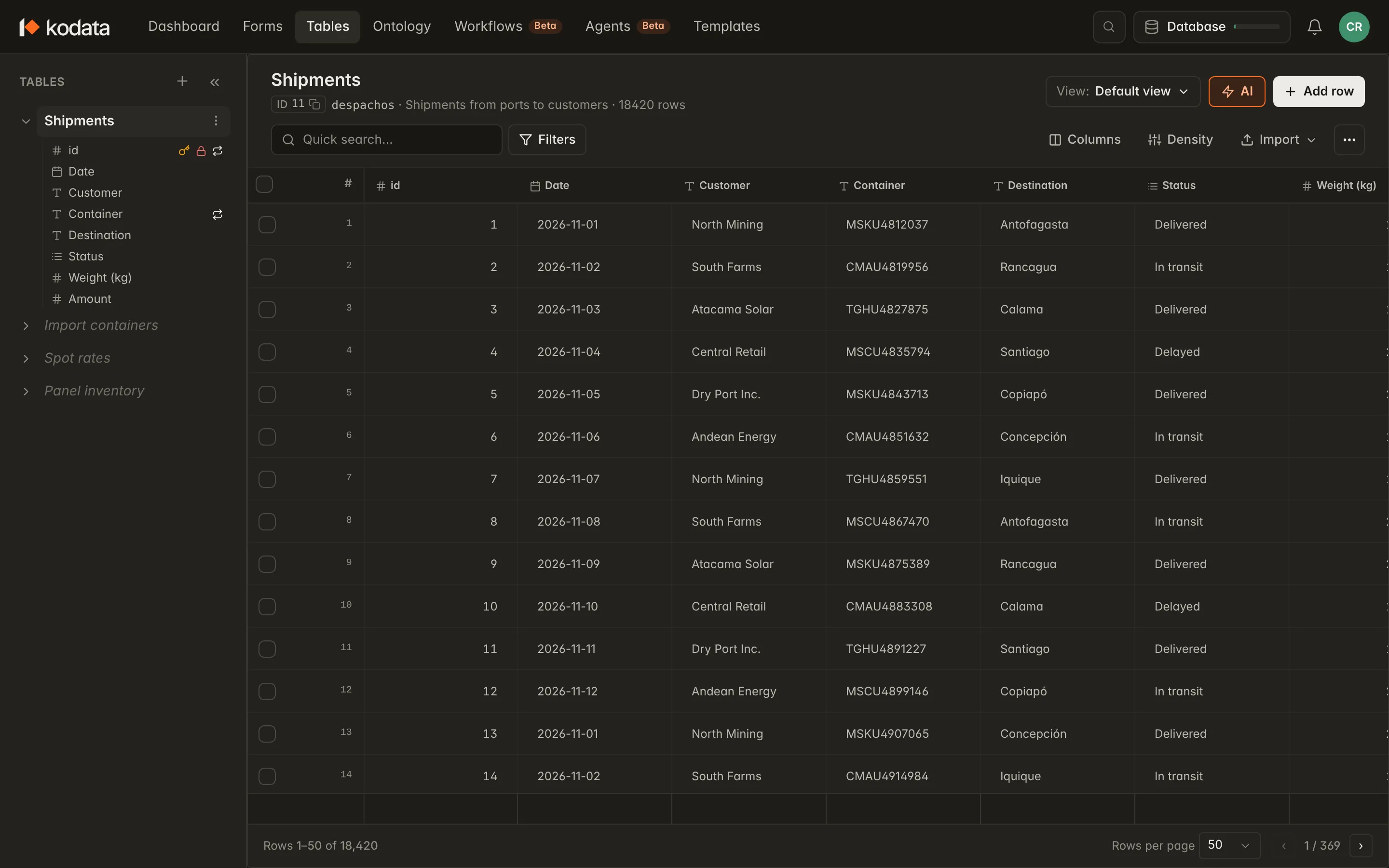
| Area | What it has |
|---|---|
| Tables sidebar | Your tables with their columns. + creates a table; « collapses the bar. Each table's ⋯ menu has Add to favorites, Settings, Access and Delete. |
| Header | The name (click to rename), the ID, the slug, the description and the row count. View: picks or saves layouts; AI opens the table chat; Add row. |
| Toolbar | Quick search..., Filters, Columns, Density, Import and More actions (⋯). |
| Grid | The rows, with pagination and Rows per page at the bottom. |
Key ideas
- Slug: the identifier of the table and of each column (lowercase letters, numbers and
_, up to 20 characters). It's what you use in SQL and in variables. If you change it, KoData updates the references. - Primary key: every table has one. If you don't pick one, KoData adds
idas an Auto-incrementing Integer ID. - Rules apply everywhere: required, unique, enum options, foreign keys and date formats are checked for every data source.
Next step
Create a table or follow the guide to import a CSV or Excel file.