Destination, alerts, access and embedding
All of this is in Form settings › Settings. Changes apply when you press Save (Ctrl+S) in the editor's top bar.
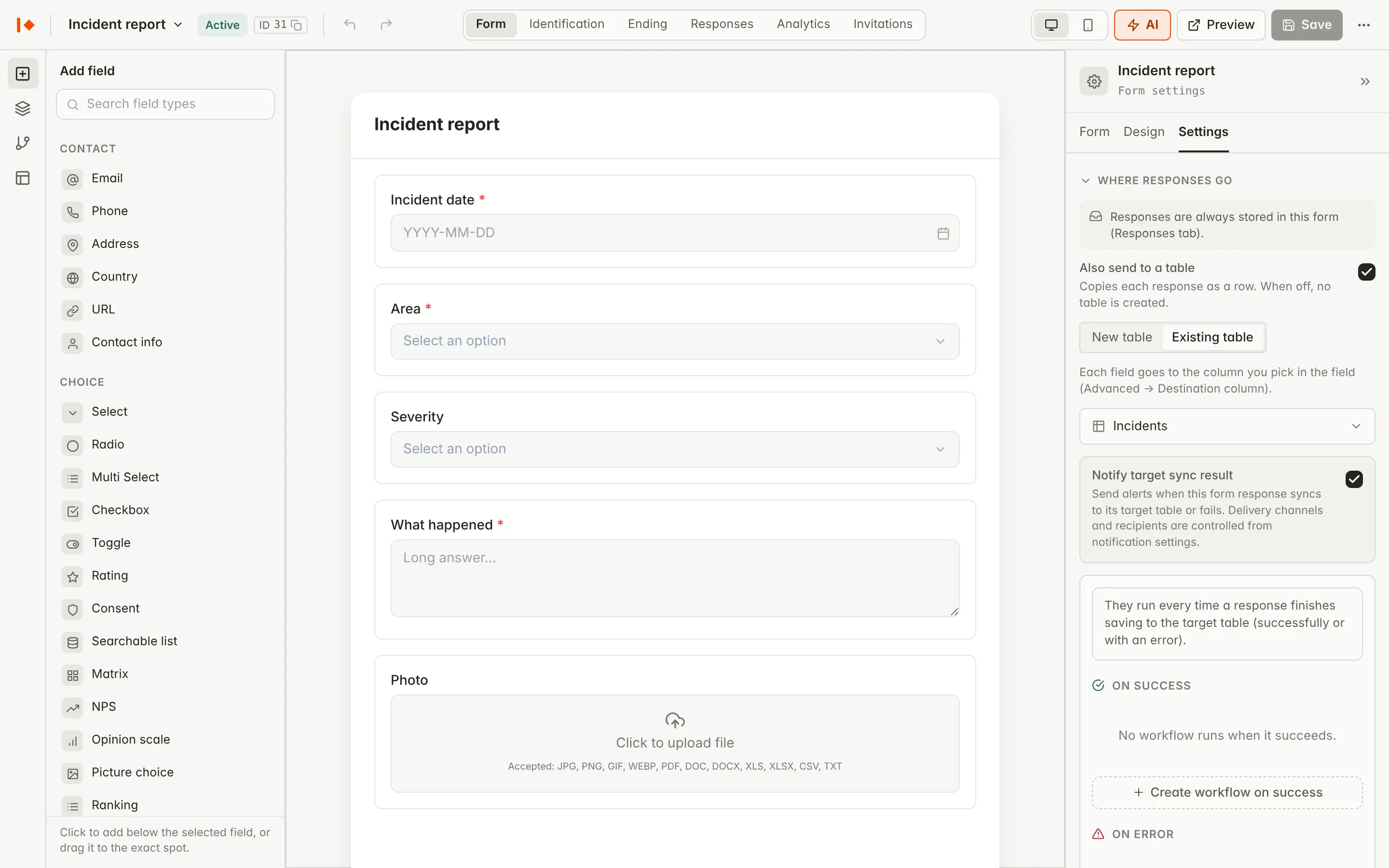
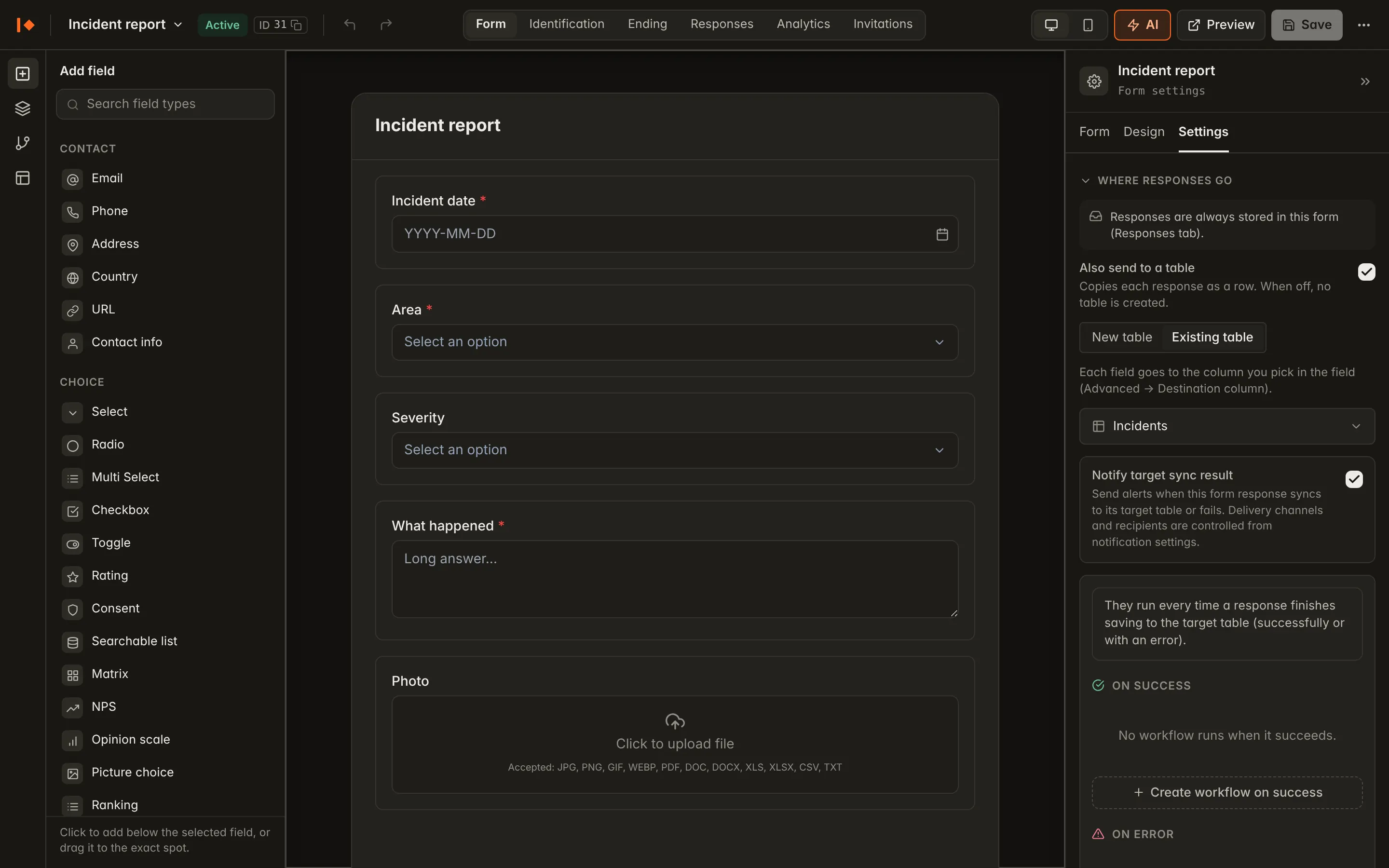
Where responses go
- Turn on Also send to a table.
- Choose New table or Existing table.
- Each field goes to its Target column. If columns are missing, Create the N missing columns adds them.
- Notify target sync result alerts you if a response couldn't be saved to the table.
Responses always stay in Responses. From here you can create a workflow on success or on error of the save.
Response alerts
Notify every new response (in the app and, with Also by email, by email) to people with access or to emails you pick. Confirm to the respondent sends them a confirmation email.
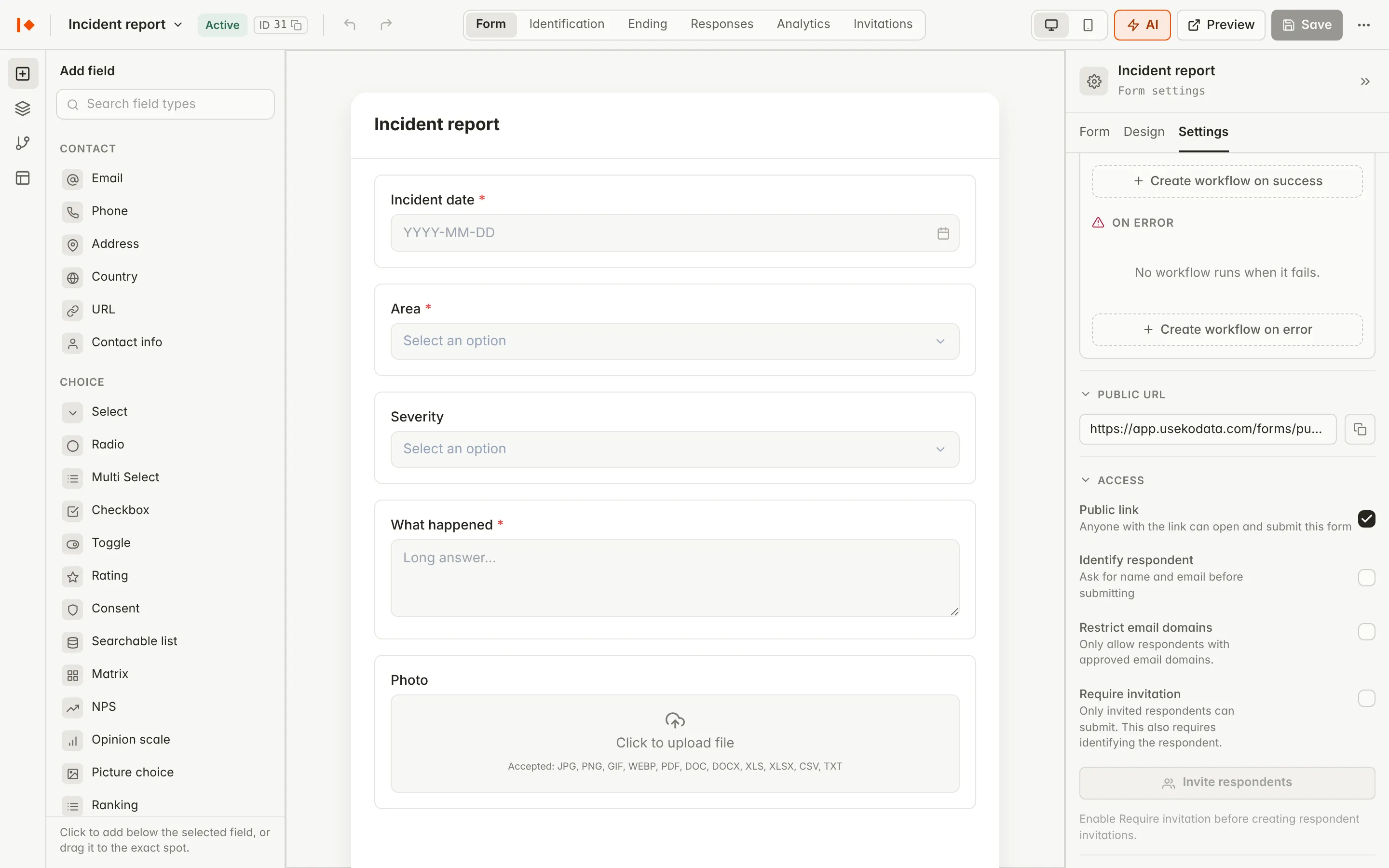
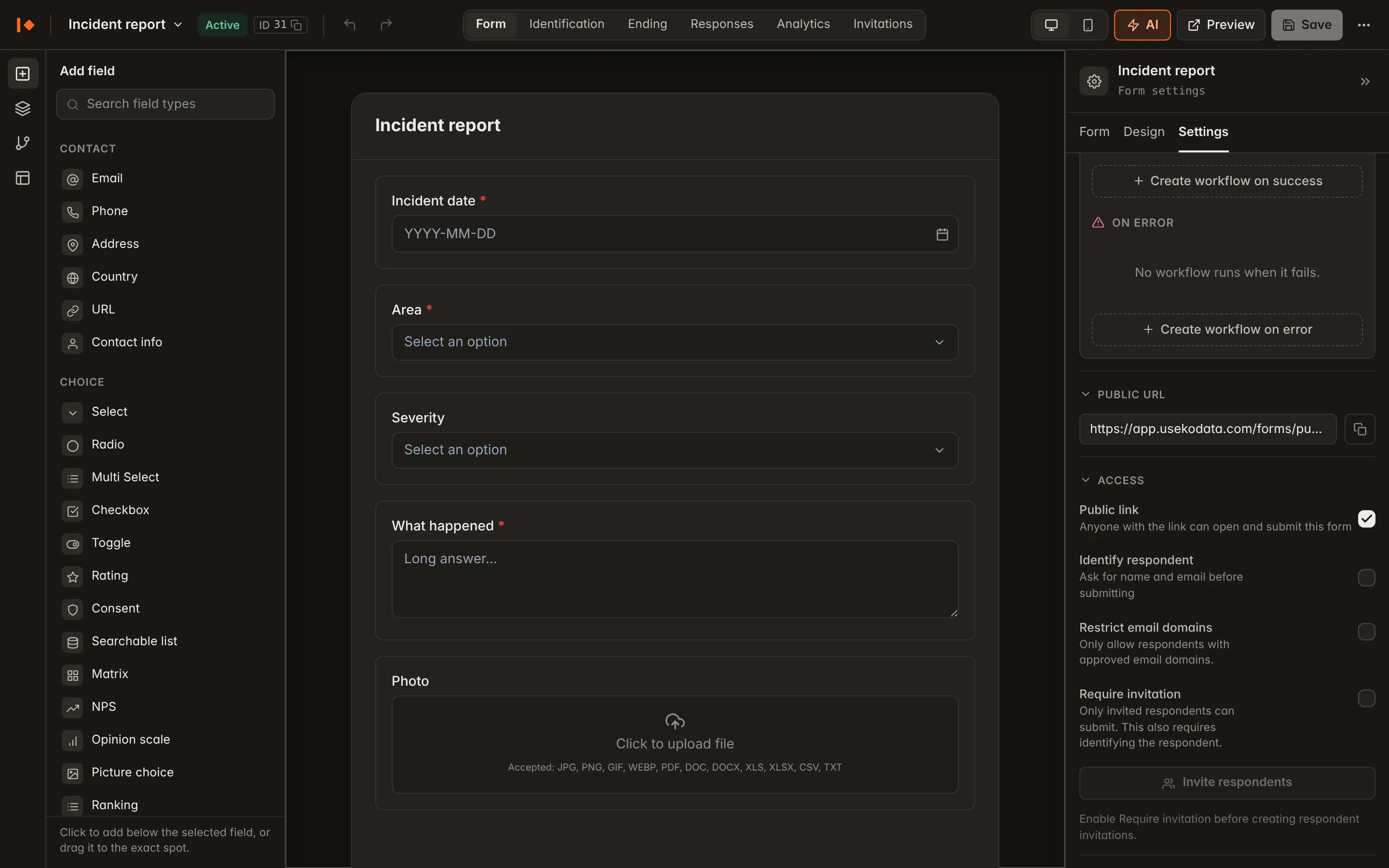
Public URL and access
- Public URL: the link to copy.
- Public link: anyone with the link can open and submit the form (all plans).
- Restrict email domains and Require invitation (invited people only; use Invite respondents).
To let only your team respond: turn on Restrict email domains and type your company domain (for example yourcompany.com); the form only accepts responses with an email from that domain. To pick person by person, use Require invitation.
Embed
Pick the Embed Mode (iFrame, Web Component or Both) and the Embed domain access (or Allow all domains). Needs the Business plan and the public link on.
Status
Active / Inactive in the top bar: an inactive form doesn't accept responses.