Queries: open, create and the editor
A query is a saved SQL query on your tables. You use it in dashboards, workflows, connectors and agents.
Requirements: seeing queries needs your role's Queries permission and access to each query.
Where they are
Queries have no menu or screen of their own: they always open in their panel, on top of the screen you're on. You open them from:
- Dashboard › Your work, Queries filter.
- Ctrl+K search: type the query's name and its panel opens without changing screens.
- The Queries side panels of the dashboard editor and the workflow editor.
- Inside a query's panel: Switch query, next to its name.
Create a query
- In Dashboard › Your work, click Create › Query (or New query in the Queries panel of the dashboard or workflow editor).
- An Untitled query, just for you, is created and its panel opens.
- Click its name (or More actions › Query settings): in Edit Query you change the name, slug and description.
- For others to use it: More actions (⋯) › Access.
See Guide: query with variables for the full step-by-step.
The editor
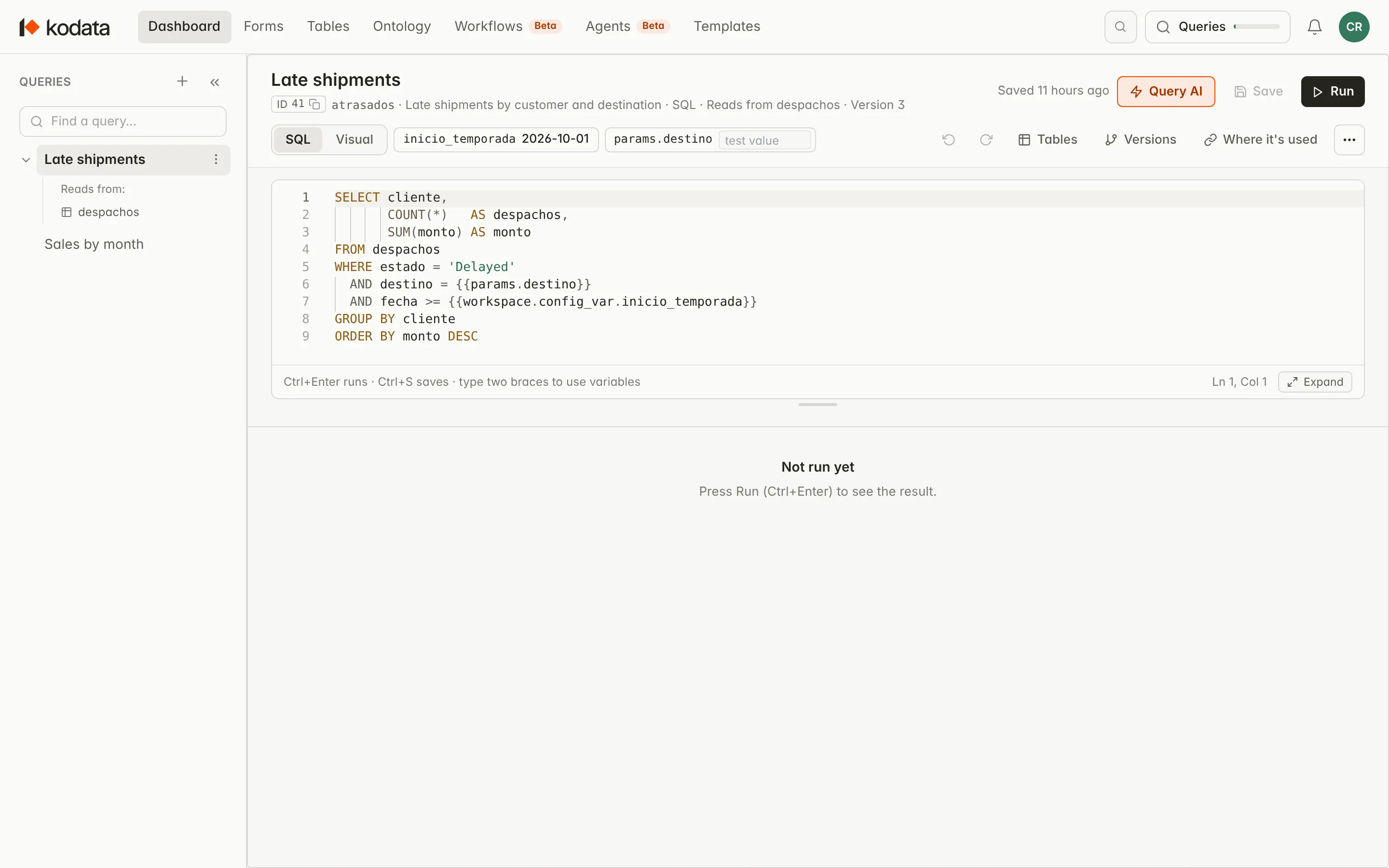
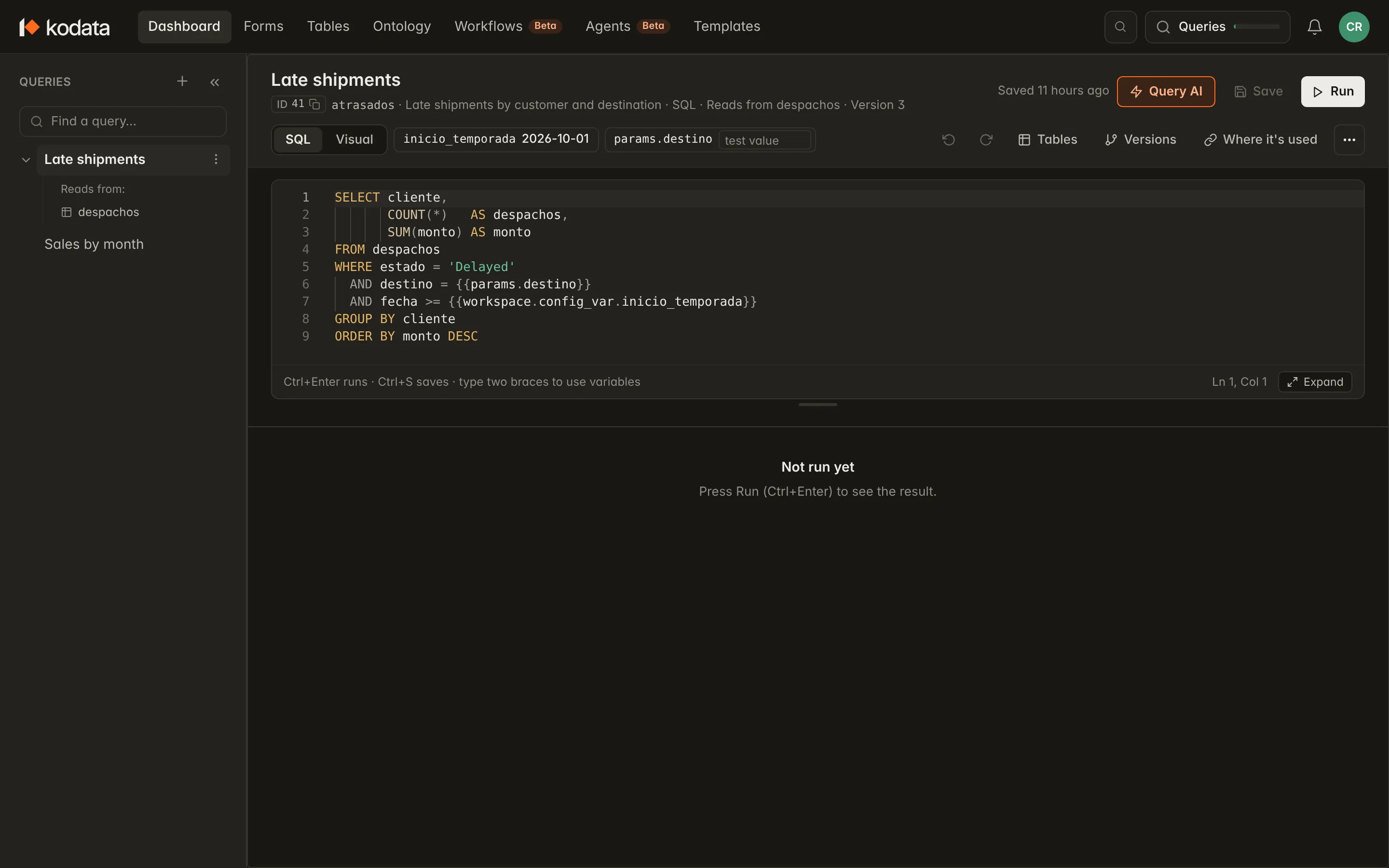
| Area | What it has |
|---|---|
| Header | Name (the arrow next to it, Switch query, opens another), slug, mode, tables it reads and version; today's query usage. Query AI, Save (Ctrl+S) and Run (Ctrl+Enter). |
| Editor bar | SQL or Visual mode, the variables with their test value, Tables, Versions, Where it's used and More actions (⋯): Add to favorites, New query, Create with AI and View trash, plus settings and access. |
| Result | Status, rows and time; Table or JSON, Copy, Download, search and Filters on the result. |
Run saves changes before running. If the query fails, the error marks the line and, when it can, suggests the fix (Did you mean…?).