Manage members
Requirements: the workspace.members.view permission; to invite, change roles or remove, workspace.members.invite, workspace.members.update_role or workspace.members.remove (by default, Owner and Admin).
Open Settings › Users.
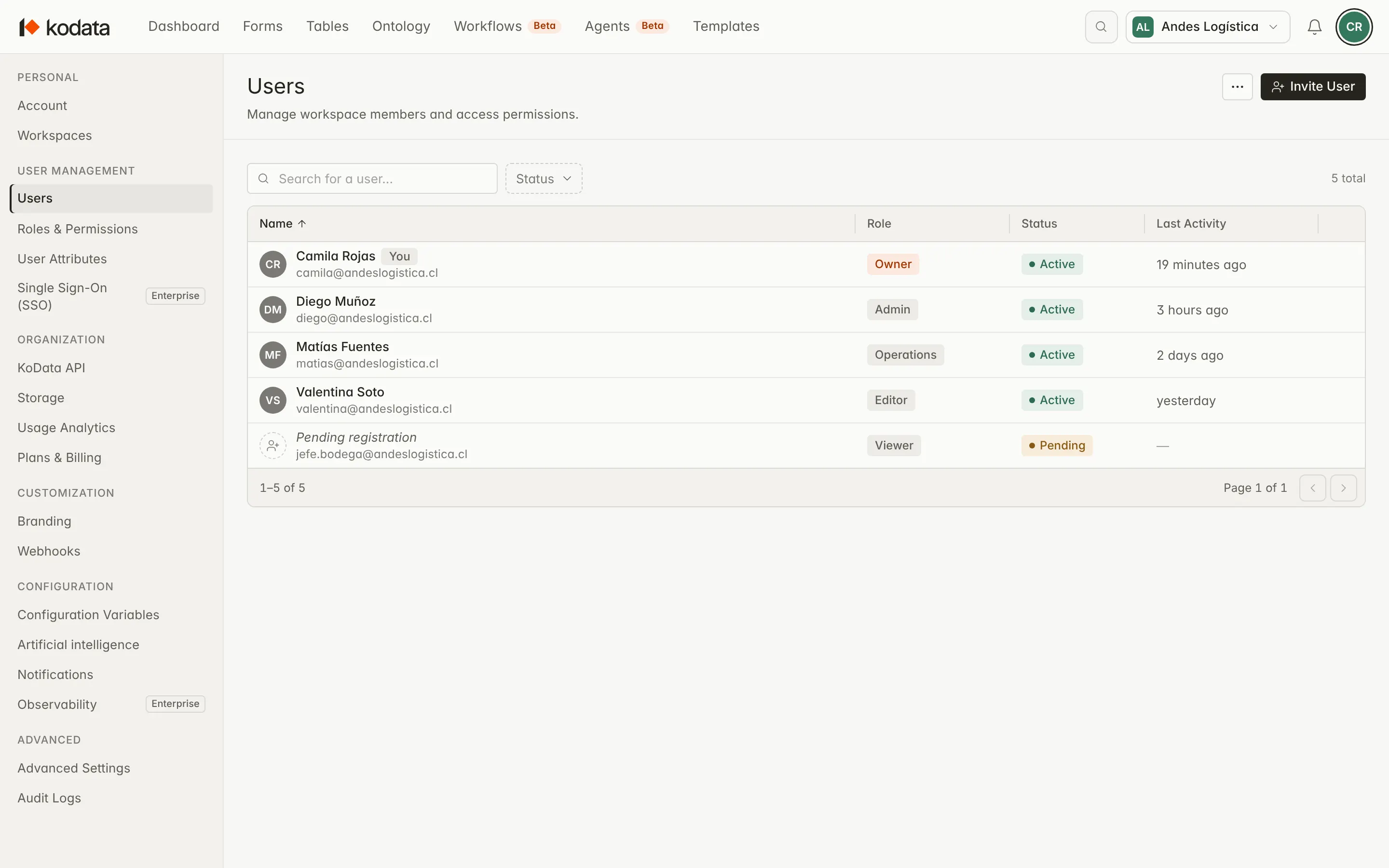
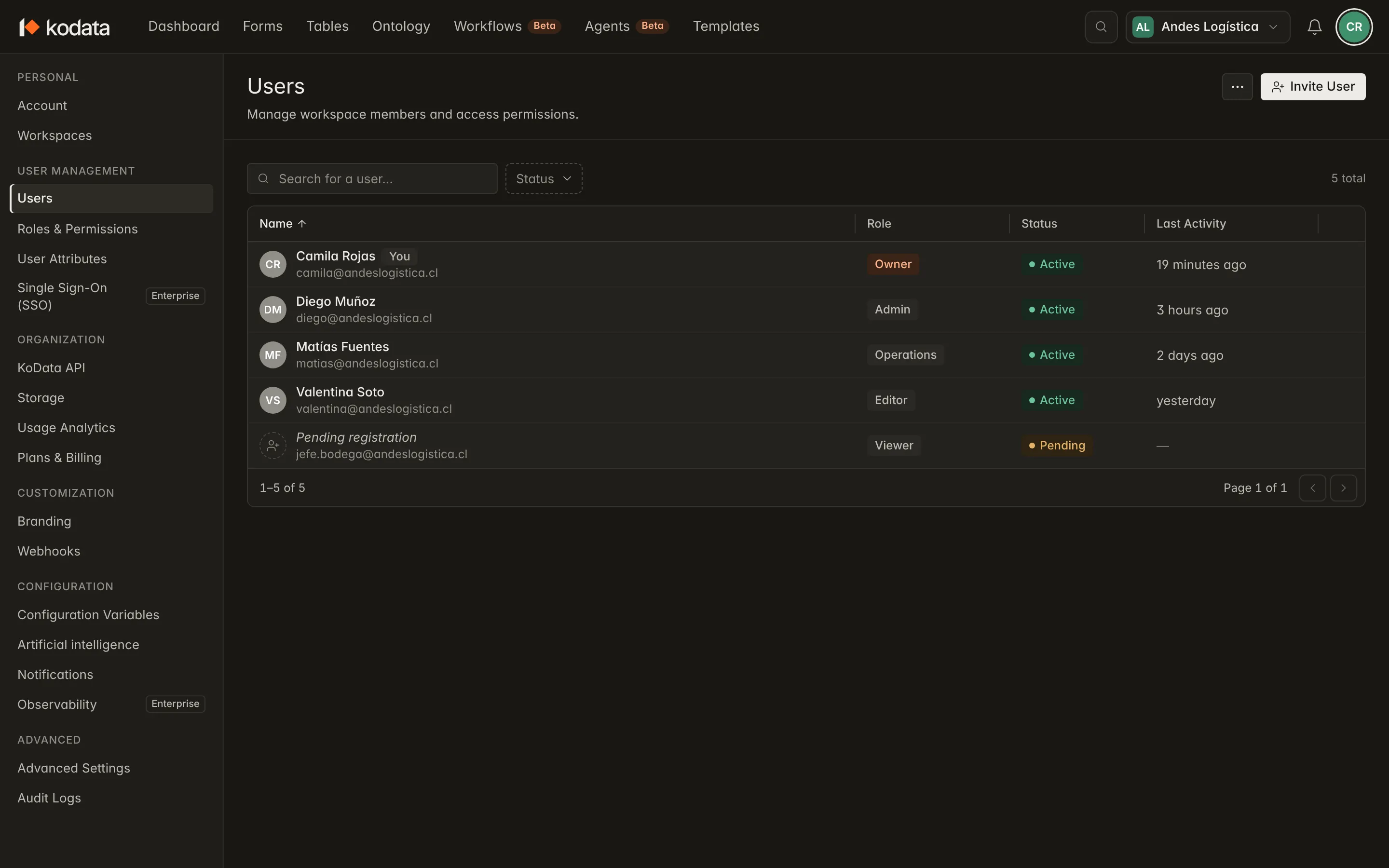
Invite
Invite User: emails, role and initial access. See Guide: invite your team. Pending invitations show up as Pending registration; their menu has Remove invitation.
Change the role
- Open the person's menu (⋯ or right-click) and choose View Details & Edit.
- Change the role and save.
Remove from the workspace
Person's menu › Remove from workspace. They lose access right away; what they created stays in the workspace.
Transfer ownership
Whoever has the workspace.members.change_owner permission (by default, the Owner): Users ⋯ menu › Transfer ownership. The other person must accept it (it arrives in Notifications). While it's pending, billing changes are locked.
Leave a workspace
In Settings › Workspaces, the workspace menu › Leave workspace. The owner can't leave: transfer ownership first.