Set up the workspace AI
Requirements: to see this screen, the workspace.ai.view permission. Each change needs its own permission (you see them in Settings › Roles & Permissions):
- What affects costs (Enable AI across your workspace, Allow AI usage beyond available credits, the model, Your keys and editing or deleting what was learned in Memory):
workspace.ai.update(by default, the Owner). - General settings (Temperature, Capabilities and Data & privacy):
workspace.ai.update.general(by default, Owner and Admin). - Credit distribution:
workspace.ai.credits.update(by default, Owner and Admin).
Open Settings › Artificial intelligence. It has six tabs:
| Tab | What you set |
|---|---|
| General | Enable AI across your workspace, Allow AI usage beyond available credits (paid plans), the Credits this period, the AI model and the Temperature (Precise, Balanced, Creative or Custom). Without your own keys the model is KoData AI: it picks the model on its own based on where and what the AI is used for, and if a provider fails another one answers. With your own keys enabled you pick the model among your keys' providers. |
| Capabilities | Which modules use AI: tables and data, SQL queries, dashboards, forms, connectors, workflows and agents. |
| Data & privacy | What the AI can read: Table schemas, Column metadata, Row data and SQL entry. |
| Memory | What the AI remembers about the workspace: you can edit, delete or Clear all memory. |
| Your keys | Use your own keys from a provider (Business and Enterprise). See below. |
| Credits & usage | Balance, usage (by event, user, capability, model, day or month) and the AI credit distribution: Shared pool, Equal per user or Custom allocation (per person). |
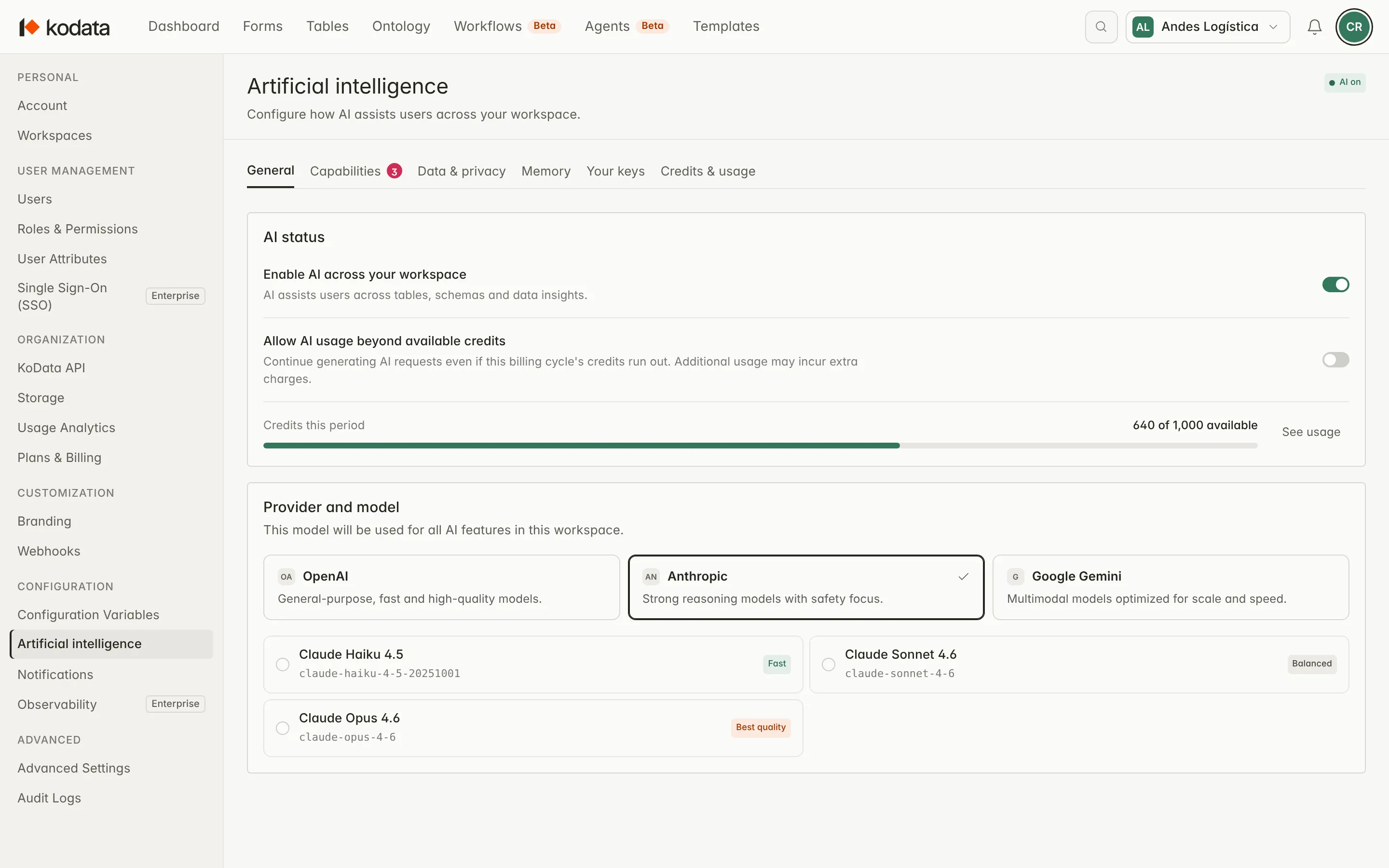
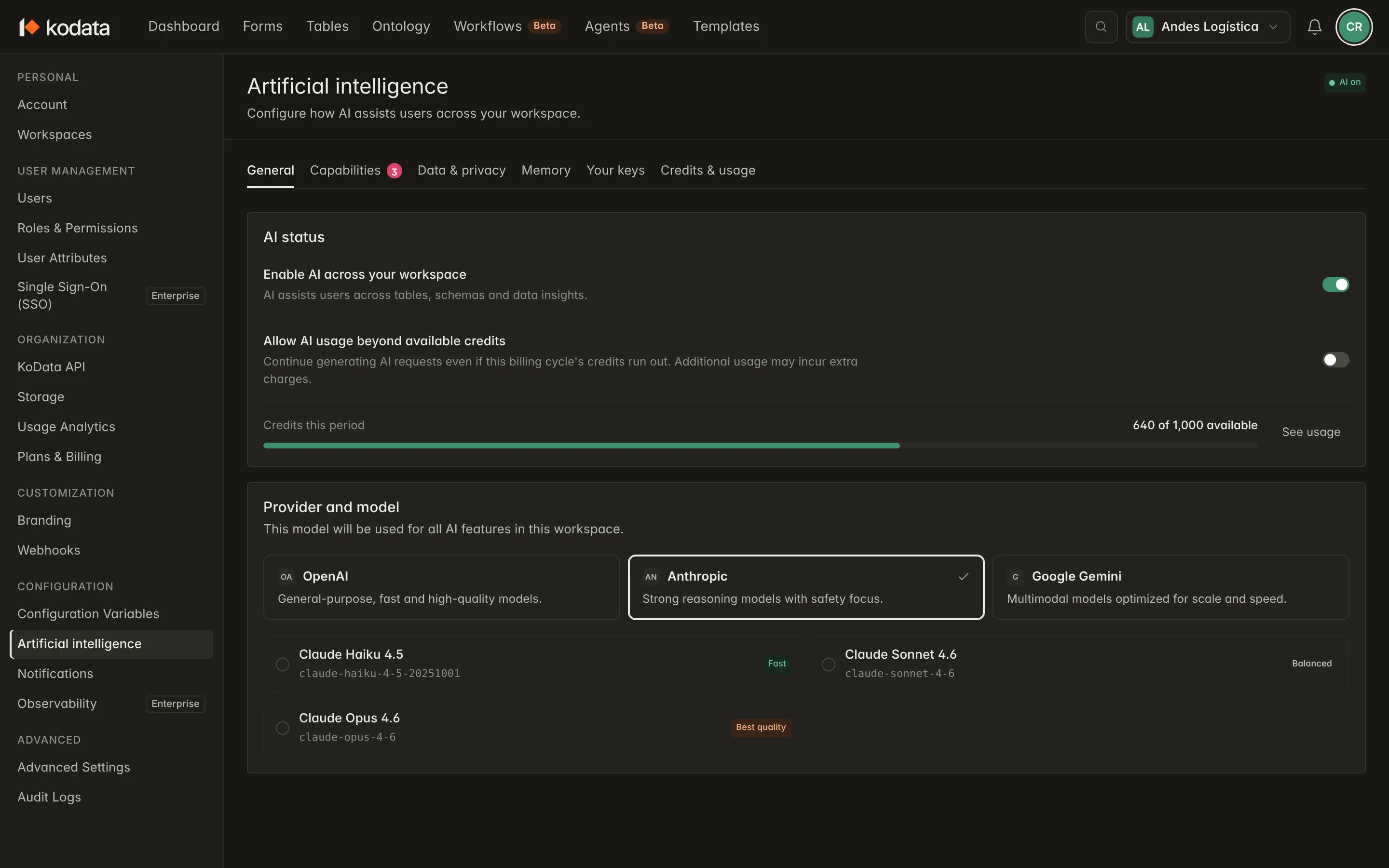
Click Save changes to apply. Credit distribution is saved right away, without Save changes.
Add your keys (Business and Enterprise)
- Open Settings › Artificial intelligence › Your keys tab (Use your own keys).
- Each provider has its row: OpenAI, Anthropic, Google Gemini, DeepSeek and xAI Grok (the last two show when the platform has them enabled). In the provider's row, click Add key.
- Paste the key in that provider's API key field (for example OpenAI API key). Create it in your provider's dashboard and paste it complete, without spaces.
- Click Save and test. KoData stores it encrypted and tests it with a minimal call.
Each row also has Test key, Replace and Remove. A row without a key uses KoData's AI.
With your own keys, all the workspace's AI uses a model from those providers, goes through your key and spends no credits: your provider bills you directly. The exception is Agents: an agent whose model isn't from a provider with a key spends credits. The Your keys tab has no Save changes: each key is saved with Save and test.